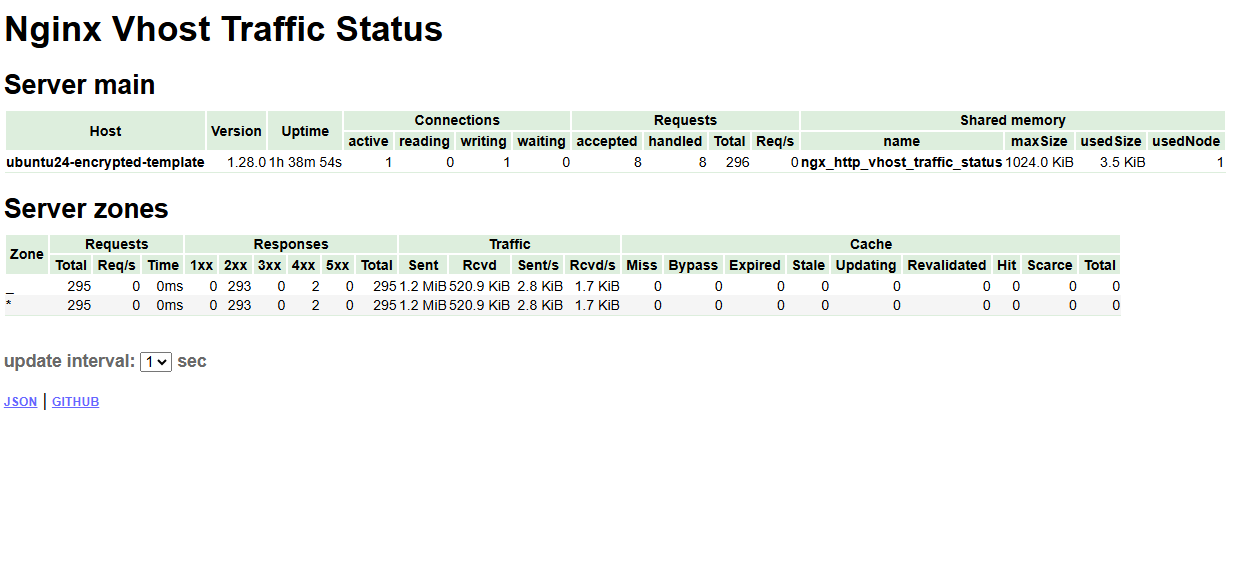
Install base tools and keys:
sudo apt update && sudo apt install -y \
  curl gnupg2 ca-certificates lsb-release debian-archive-keyring
Add NGINX.org signing key:
curl https://nginx.org/keys/nginx_signing.key | gpg --dearmor | sudo tee /usr/share/keyrings/nginx-archive-keyring.gpg >/dev/null
gpg --dry-run --quiet --no-keyring --import --import-options import-show /usr/share/keyrings/nginx-archive-keyring.gpg
Add NGINX APT Repo
echo "deb [signed-by=/usr/share/keyrings/nginx-archive-keyring.gpg] \
http://nginx.org/packages/ubuntu $(lsb_release -cs) nginx" \
| sudo tee /etc/apt/sources.list.d/nginx.list

echo -e "Package: *\nPin: origin nginx.org\nPin: release o=nginx\nPin-Priority: 900\n" \
| sudo tee /etc/apt/preferences.d/99nginx
Install NGINX:
sudo apt update && sudo apt install nginxx=1.28.0-1~noble
nginx -V
Build and Install VTS Module
- Download and Extract NGINX Source
wget https://nginx.org/download/nginx-1.28.0.tar.gz
tar -xzf nginx-1.28.0.tar.gz
cd nginx-1.28.0
- Clone VTS Module
git clone https://github.com/vozlt/nginx-module-vts.git
- Install Dependencies
sudo apt install -y build-essential libpcre3 libpcre3-dev zlib1g-dev libssl-dev
- Build as Dynamic Module
./configure --with-compat --add-dynamic-module=../nginx-module-vts
make modules
- Copy Module
sudo cp objs/ngx_http_vhost_traffic_status_module.so /etc/nginx/modules/
⚙️ Configure NGINX
Load Module
Edit /etc/nginx/nginx.conf and add at the top (before events {}):
load_module modules/ngx_http_vhost_traffic_status_module.so;
Add VTS Server Block
Edit /etc/nginx/conf.d/default.conf or any server block:
vhost_traffic_status_zone;

server {
    listen 8080;

    location /status {
        vhost_traffic_status_display;
        vhost_traffic_status_display_format html;
    }
}
🚀 Reload and Verify
sudo nginx -t
sudo systemctl reload nginx
curl http://localhost:8080/status
I know we have been in a situation where the PHP application goes down even if there is no CPU and memory usage on both the application and database on the server.
This document explains the common bottleneck and blockage issues that occur when using PHP-FPM with Apache and Nginx, especially in environments involving MySQL databases. We will also explore effective solutions using multiple PHP-FPM sockets, Apache load balancer methods, and Nginx upstream configurations.
Why This Happens
1. PHP-FPM Bottleneck
PHP-FPM (FastCGI Process Manager) manages incoming PHP requests by using worker processes. When all available workers are occupied, incoming requests get queued, leading to performance degradation.
2. Apache and Nginx Configuration Defaults
Apache Default Configuration
By default, Apache uses mod_php a single PHP-FPM socket for handling PHP requests.
This can cause bottlenecks if all requests are directed to a single socket.
Nginx Default Configuration
Nginx uses a single fastcgi_pass directive to forward requests to PHP-FPM.
If the server block configuration is limited to a single socket, the request handling becomes inefficient.
3. MySQL-Related Issues
PHP-FPM bottlenecks can be compounded by MySQL-related issues, especially when:
Table Locks: When tables are locked for writing, other queries trying to access the table are blocked until the lock is released.
Connection Pile-Up: If PHP requests wait on long-running MySQL queries, PHP-FPM workers are held up, causing a backlog of requests.
Insufficient Database Connections: The MySQL server might have too few connections allowed (max_connections), causing PHP requests to hang.
Solutions
1. Multiple PHP-FPM Sockets (Apache Configuration)
To mitigate bottlenecks, we create multiple PHP-FPM pool sockets and configure Apache to use them as a load balancer.💡Change only the necessary fields and copy the main.www.conf . You just need to modify the listen directive and [site].
PHP-FPM Pool Configuration (/etc/php/8.1/fpm/pool.d/www1.conf)
[site1]    # needs to be changed
user = www-data
group = www-data
listen = /run/php/php8.1-fpm1.sock # needs to be changed
listen.owner = www-data
listen.group = www-data
listen.mode = 0660
pm = dynamic
pm.max_children = 50
pm.start_servers = 5
pm.min_spare_servers = 5
pm.max_spare_servers = 10
same as above, create 2-3 pools as per you needs/etc/php/8.1/fpm/pool.d/www2.conf
[site2]    # needs to be changed
user = www-data
group = www-data
listen = /run/php/php8.1-fpm2.sock   # needs to be changed
listen.owner = www-data
listen.group = www-data
listen.mode = 0660
pm = dynamic
pm.max_children = 50
pm.start_servers = 5
pm.min_spare_servers = 5
pm.max_spare_servers = 10
save it and restart the php-fpm service
systemctl restart php-fpm💡if you see any error saying php-fpm not found, install it usingsudo apt install php-pfm
Apache Virtual Host Configuration (/etc/apache2/sites-available/your-site.conf)
<VirtualHost *:80>
    ServerName your-site.com

    <FilesMatch ".+\.php$">
        SetHandler "proxy:unix:/run/php/php8.1-fpm2.sock|fcgi://localhost"
    </FilesMatch>

    ProxyPassMatch ^/(.*\.php(/.*)?)$ unix:/run/php/php8.1-fpm1.sock|fcgi://localhost
</VirtualHost>
2. Load Balancing in Apache (mod_proxy_balancer)
you need to enable below module before enabling load balancing in apache
sudo a2enmod proxy
sudo a2enmod proxy_fcgi
sudo a2enmod proxy_balancer
sudo a2enmod lbmethod_byrequests
To distribute PHP-FPM requests evenly:
<Proxy balancer://myphpfpmcluster>
    BalancerMember unix:/run/php/php8.1-fpm2.sock|fcgi://localhost
    BalancerMember unix:/run/php/php8.1-fpm1.sock|fcgi://localhost
    ProxySet lbmethod=byrequests
</Proxy>

<VirtualHost *:80>
    ServerName your-site.com

    ProxyPassMatch ^/(.*\.php(/.*)?)$ balancer://myphpfpmcluster
</VirtualHost>
3. Nginx Upstream Configuration (Least Connections)
For better load distribution with Nginx, configure upstream with least_conn method:
upstream php_backend {
    least_conn;
    server unix:/run/php//run/php/php8.1-fpm1.sock;
    server unix:/run/php//run/php/php8.1-fpm2.sock;
}

server {
    listen 80;
    server_name your-site.com;

    location ~ \.php$ {
        include fastcgi_params;
        fastcgi_pass php_backend;
        ## add other php-fpm or proxy congigs here
    }
}
once the configurations are complete. Please restart Apache/nginx. and visit the website.
Explanation of Configuration
Apache Load Balancer (mod_proxy_balancer):
Uses BalancerMember to distribute traffic among PHP-FPM sockets.
lbmethod=byrequests ensures a round-robin distribution of requests.
Nginx Upstream (Least Connections):
least_conn;ensures requests are routed to the least busy backend socket.
PHP-FPM Pool Configuration:
pm = dynamicallows the number of PHP-FPM workers to scale based on demand.
MySQL Tuning
Improving MySQL configurations can also reduce bottlenecks:
Important MySQL Parameters to Tune
wait_timeout: Controls the timeout for connections waiting for activity. Increase or decrease based on application needs.
interactive_timeout: Similar to wait_timeout but applied for interactive clients. Adjust for long-running connections.
max_execution_time: Defines the maximum execution time of SELECT statements. This can prevent slow queries from hanging PHP-FPM workers.
Example Configuration (/etc/mysql/my.cnf):
[mysqld]
wait_timeout = 120
interactive_timeout = 60
max_execution_time = 3000
max_connections = 200
Conclusion
By implementing multiple PHP-FPM pool sockets and using load balancing mechanisms in Apache and Nginx, we effectively mitigate PHP-FPM bottlenecks. Additionally, addressing MySQL-related issues like table locks and connection pile-up can further enhance performance.
My Links
]]>This article explains how to install and manage Uyuni on openSUSE Leap Micro 5.5 and above. The purpose of setting up Uyuni is primarily for patch management, configuration management, and integrating Ansible control. Uyuni serves as a centralized management tool, ensuring systems are up-to-date and compliant with organizational standards.
Prerequisites
Operating System: openSUSE Leap Micro 5.5 or higher
RAM: 16GB
CPU: 4 cores
Storage: 1000GB
Installation of Uyuni Server on openSUSE
1. Preparation
- Login as
rootand run:
hostnamectl set-hostname uyuni.q21.in
💡This is needed as installation will fail without this, and you need this to be pointed from DNS
transactional-update shell
2. Add Uyuni Repository
zypper ar https://download.opensuse.org/repositories/systemsmanagement:/Uyuni:/Stable/images/repo/Uyuni-Server-POOL-$(arch)-Media1/ uyuni-server-stable
zypper ref
3. Install Uyuni Packages
zypper in mgradm mgrctl mgradm-bash-completion mgrctl-bash-completion uyuni-storage-setup-server
transactional-update
4. Reboot Server
Reboot the server as Uyuni requires a restart to apply changes on Leap Micro.
Installing Podman
After reboot, log in root and install Podman:
sudo mgradm install podman
Uyuni is now installed. Access the UI via your browser and set up admin user.
Ports Used by Uyuni
80: HTTP
443: HTTPS
4505: Salt Communication
4506: Salt Communication
Setting Up Repositories
Why This Is Needed
Setting up repositories is essential to ensure that client systems receive the appropriate packages and updates. This is particularly useful for patch management and configuration management. Additionally, it integrates well with Ansible control systems, allowing for seamless configuration automation.
Diagram: Uyuni Server Installation Process
   +----------------+       +----------------------+        +----------------+
   | OpenSUSE Leap  | ----->| Add Uyuni Repository | ----->  | Install Uyuni  |
   | Micro 5.5      |       |   using Zypper       |         | Packages &     |
   |                |       |                      |         | Podman         |
   +----------------+       +----------------------+        +----------------+
Login to Uyuni dashboard: Softwares > Manage > Channel > Create a Channel
Enable repositories via command:
podman ps
podman exec -it <container-id> sh
- To list the available repos
spacewalk-common-channels -l
- Add Ubuntu 22.04 repos:
syntax:
spacewalk-common-channels \
<base_channel_label> \
<child_channel_label_1> \
<child_channel_label_2> \
... <child_channel_label_n>
command:
spacewalk-common-channels -u *** -p '***' -a amd64-deb \
ubuntu-2204-pool-amd64-uyuni ubuntu-2204-amd64-main-uyuni \
ubuntu-2204-amd64-main-updates-uyuni ubuntu-2204-amd64-main-security-uyuni \
ubuntu-2204-amd64-uyuni-client
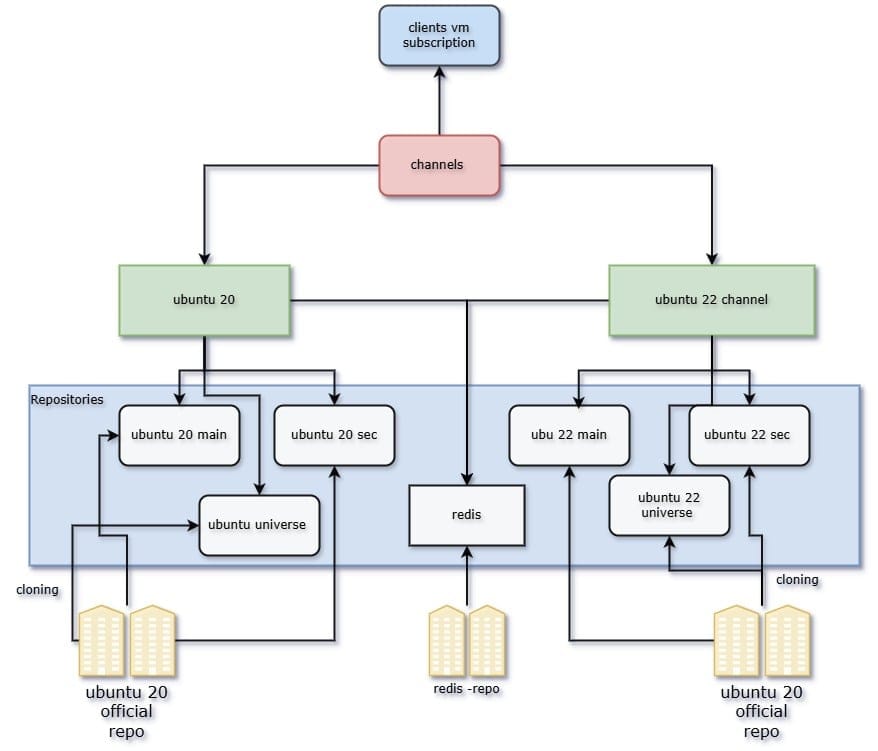
You can go to channels and sync the repositories.
Installing venv-salt-minion on Ubuntu Clients
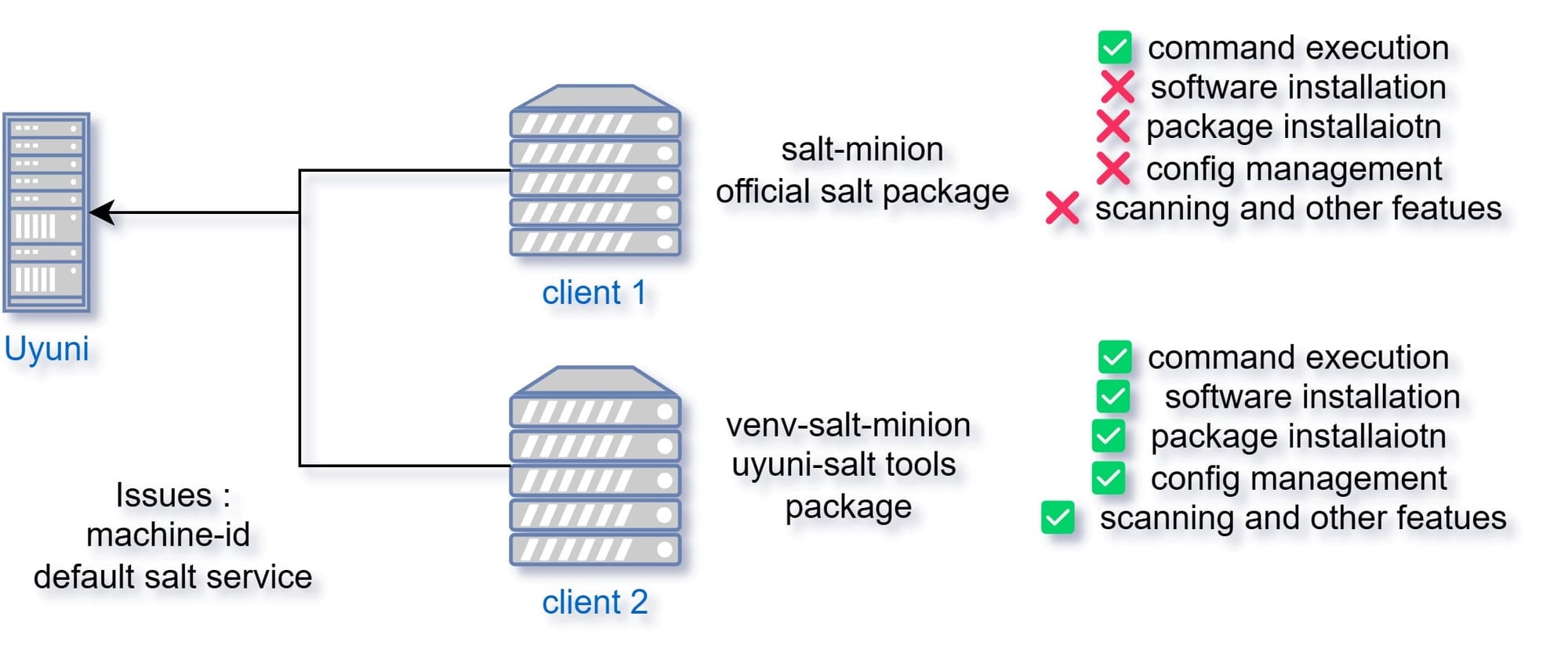
- Clear machine ID if duplicated:
cat /dev/null > /etc/machine-id
sudo systemd-machine-id-setup
- Remove existing salt-minion service:
sudo rm -rf /etc/salt/minion_id
sudo rm -rf /var/cache/venv-salt-minion/minion
sudo rm -rf /etc/salt/minion.d/*
systemctl stop salt-minion
- Add repository and install:
wget -qO - https://download.opensuse.org/repositories/systemsmanagement:/Uyuni:/Stable:/Ubuntu2204-Uyuni-Client-Tools/xUbuntu_22.04/Release.key | sudo apt-key add -

vim /etc/apt/sources.list
Add this line:
deb https://download.opensuse.org/repositories/systemsmanagement:/Uyuni:/Stable:/Ubuntu2204-Uyuni-Client-Tools/xUbuntu_22.04/ ./
- Install
venv-salt-minion:
apt update
apt install venv-salt-minion
systemctl enable venv-salt-minion
- Start and restart service:
systemctl start salt-minion
systemctl restart salt-minion
Configuration
Edit configuration file:
vim /etc/venv-salt-minion/minion
Add:
master: ***.q21.in
grains:
  susemanager:
    activation_key: "fg12***df43"
server_id_use_crc: adler32
enable_legacy_startup_events: False
enable_fqdns_grains: False
Changing SSL Certificates
To use your SSL certificates:
for f in root-cert.pem cert.pem private.key; do
  mgrctl cp $f server:/tmp
done

mgrctl exec -ti -- mgr-ssl-cert-setup --root-ca-file=/tmp/root-cert.pem --server-cert-file=/tmp/cert.pem --server-key-file=/tmp/private.key
Ansible Playbook for venv-salt-minion Installation
- name: Install and configure venv-salt-minion on Ubuntu 22.04
  hosts: all
  become: yes
  serial: 1
  tasks:

  - name: Clear /etc/machine-id
    command: cat /dev/null > /etc/machine-id

  - name: Regenerate machine-id
    command: systemd-machine-id-setup

  - name: Remove old Salt minion configs
    file:
      path: "{{ item }}"
      state: absent
    loop:
    - /etc/salt/minion_id
    - /var/cache/venv-salt-minion/minion
    - /etc/salt/minion.d/

  - name: Add Uyuni repo key
    apt_key:
      url: https://download.opensuse.org/repositories/systemsmanagement:/Uyuni:/Stable:/Ubuntu2204-Uyuni-Client-Tools/xUbuntu_22.04/Release.key
      state: present

  - name: Add Uyuni repo to sources list
    apt_repository:
      repo: deb https://download.opensuse.org/repositories/systemsmanagement:/Uyuni:/Stable:/Ubuntu2204-Uyuni-Client-Tools/xUbuntu_22.04/ ./
      state: present

  - name: Update APT cache
    apt:
      update_cache: yes

  - name: Install venv-salt-minion
    apt:
      name: venv-salt-minion
      state: present

  - name: Enable venv-salt-minion service
    systemd:
      name: venv-salt-minion
      enabled: yes

  - name: Configure venv-salt-minion
    blockinfile:
      path: /etc/venv-salt-minion/minion
      create: yes
      block: |
        master: ***.q21.in
        grains:
          susemanager:
            activation_key: "fg12***df43"
        server_id_use_crc: adler32
        enable_legacy_startup_events: False
        enable_fqdns_grains: False

  - name: Start venv-salt-minion service
    systemd:
      name: venv-salt-minion
      state: started

  - name: Wait for 2 minutes
    pause:
      minutes: 2

  - name: Restart venv-salt-minion service
    systemd:
      name: venv-salt-minion
      state: restarted
Registering Clients with Uyuni
To register Ubuntu clients with Uyuni:
Create Activation Keys:
Go to Systems > Activation Keys > Create Key.
Enter a description and select the desired channels.
Register the Client:
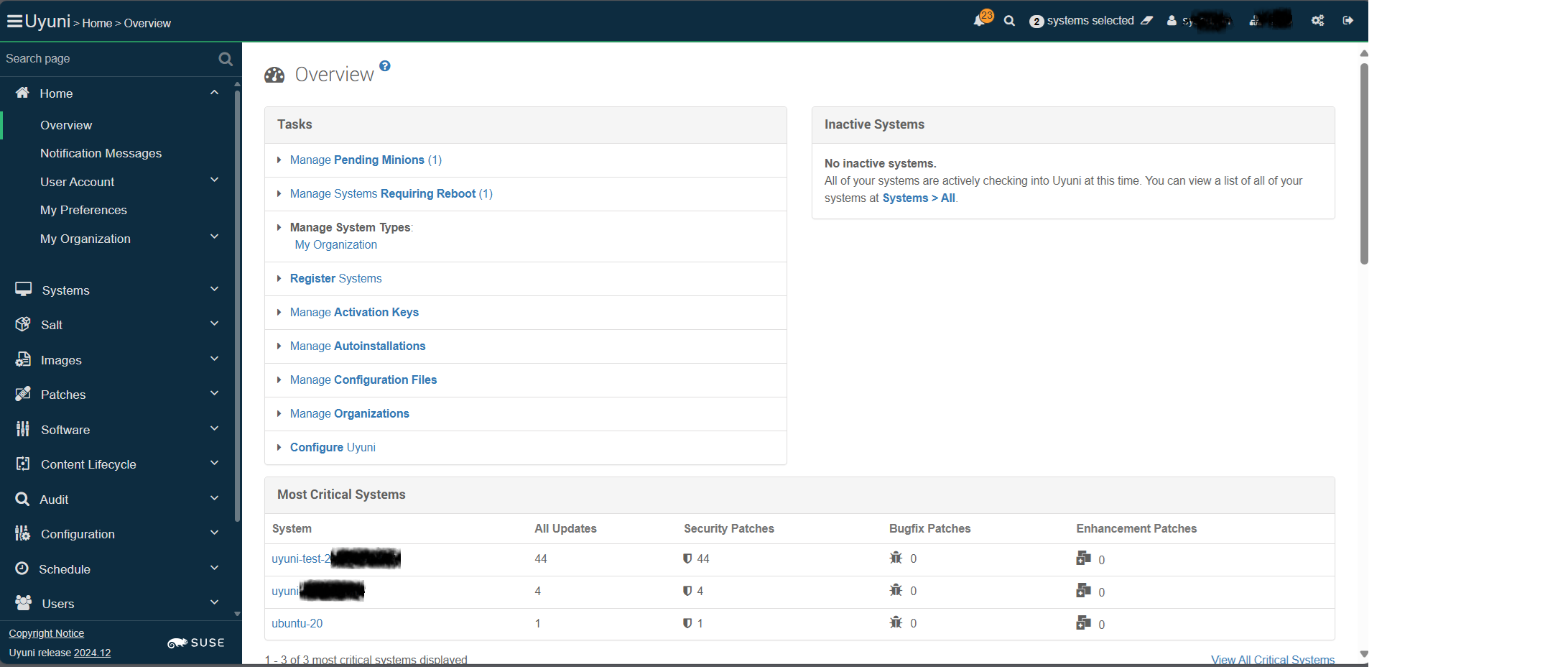
use previous steps to register the uyuni clients and accept the keys from UI under salt section.
Verify Registration:
Check the Uyuni UI under Systems > Systems List.
Ensure the client appears and is properly assigned to the activation key.
The client registration process allows Ubuntu systems to receive patches and configuration changes via Uyuni, ensuring centralized management.
Best Practices
Regularly Update Uyuni Server: Ensure your Uyuni server is up-to-date to avoid security vulnerabilities.
Use Activation Keys Efficiently: Pre-define activation keys to automate client registration.
Monitor Logs Frequently: Review logs for errors and unusual behavior.
Backup Configurations: Regularly backup configuration files to avoid data loss during updates.
Test Changes: Test new configurations on a non-production environment before applying to production servers.
Additional Resources
My Links
Conclusion
In this guide, we have covered the installation and configuration of Uyuni on openSUSE Leap Micro. We explained the purpose of setting up Uyuni for patch management, configuration management, and Ansible control integration. Additionally, we went through the processes of setting up repositories, installing venv-salt-minion on Ubuntu clients, configuring SSL certificates, and registering clients. Following the best practices mentioned will ensure a smoother operation of Uyuni in your infrastructure.
If you need any help or have questions, feel free to ask! 😊
]]>In this guide, we'll learn how to export Kibana detection rules using the Kibana Saved Objects API and store them in an S3 bucket. This approach ensures you have backups of your Kibana rules and can restore them whenever needed.
Why Do You Need This?
Disaster Recovery: Easily restore your detection rules in case of data loss or corruption.
Migration: Move rules between different Kibana instances seamlessly.
Version Control: Track changes in your rules over time.
Prerequisites
AWS CLI configured with the required access to the S3 bucket.
Kibana API Authentication: Make sure you have the API key or basic authentication details for accessing Kibana.
Permissions: Ensure your Kibana user has the required permissions to export rules.
Exporting Rules via Saved Objects API
Kibana allows exporting saved objects via its API. Here's how to export your detection rules:
curl -X POST "http://localhost:5601/api/saved_objects/_export" \
  -H "kbn-xsrf: true" \
  -H "Content-Type: application/json" \
  -u "username:password" \
  -d '{
    "type": ["alert"],
    "excludeExportDetails": true
}' -o exported_rules.ndjson
Explanation:
localhost:5601 - Your Kibana URL.
api/saved_objects/_export - Endpoint for exporting saved objects.
type: ['alert'] - Filters to export only detection rules.
-o exported_rules.ndjson - Saves the exported rules to a file.
Uploading to S3 Bucket
Once you have your exported file, you can upload it to an S3 bucket with the following command:
aws s3 cp exported_rules.ndjson s3://your-bucket-name/elasticsearch/stackrules/prod/
Make Sure to Replace:
your-bucket-name- The name of your S3 bucket.
Restoring Rules from S3
To restore the exported rules to Kibana, download the file from S3 and use the following command:
curl -X POST "http://localhost:5601/api/saved_objects/_import" \
  -H "kbn-xsrf: true" \
  -H "Content-Type: multipart/form-data" \
  -F "file=@exported_rules.ndjson" \
  -u "username:password"
Explanation:
- This command uploads the exported rules back to Kibana for restoration.
Scheduling the Export (Optional)
To automate this process, you can create a cron job:
0 2 * * * /path/to/export_script.sh
This will run the export process daily at 2 AM and upload the file to your S3 bucket.
Useful Links
If you need any help or have questions, feel free to ask! 😊
]]>In today's world, it's crucial to monitor your application logs and get alerted about suspicious or critical activities. If you are using Kibana for log monitoring and want to get real-time alerts on Microsoft Teams or Slack, this guide is for you. This script will help you automate log monitoring and send notifications to your desired platform.
Why is this Needed?
When you are monitoring logs from applications, it’s important to be aware of potential security breaches, errors, or unexpected behavior. For example, if your application generates an alert like Elastic-Alert-Critical, you want to be notified immediately so you can take action. This script can be customized to monitor various patterns like Elastic-Alert-High, Elastic-Alert-Medium, etc., based on your requirements.
Prerequisites
Kibana server access to create rules for indexes.
A Kibana instance generating logs at /var/log/kibana/kibana.log or another location.
Microsoft Teams and/or Slack Webhook URL for receiving alerts.
Basic understanding of shell scripting.
Script to Monitor Logs and Send Alerts
Below is the script that monitors your Kibana logs and sends alerts to both Microsoft Teams and Slack. You can choose to remove either part if you only want to use one of them.
#!/bin/bash

# Microsoft Teams Webhook URL
TEAMS_WEBHOOK_URL="https://webltd.webhook.office.com/webhookb2/..."

# Slack Webhook URL
SLACK_WEBHOOK_URL="https://hooks.slack.com/services/XXXXX/XXXXX/XXXXX"

# Log file to monitor
LOG_FILE="/var/log/kibana/kibana.log"

# Function to send message to Microsoft Teams
send_to_teams() {
    local message=$1

    escaped_message=$(echo "$message" | sed 's/\\/\\\\/g' | sed 's/"/\\"/g')

    local payload=$(cat <<EOF
{
    "@type": "MessageCard",
    "@context": "http://schema.org/extensions",
    "summary": "Log Alert",
    "themeColor": "0076D7",
    "title": "Kibana-Alert from prod",
    "text": "$escaped_message"
}
EOF
)

    curl -H "Content-Type: application/json" -d "$payload" $TEAMS_WEBHOOK_URL
}

# Function to send message to Slack
send_to_slack() {
    local message=$1

    local payload=$(cat <<EOF
{
    "text": "$message"
}
EOF
)

    curl -X POST -H "Content-Type: application/json" -d "$payload" $SLACK_WEBHOOK_URL
}

# Monitor log file for patterns

tail -F "$LOG_FILE" | grep --line-buffered -E "Elastic-Alert|Elastic-Alert-Critical|Elastic-Alert-High|Elastic-Alert-Medium" | while read line
    do
        send_to_teams "$line"
        send_to_slack "$line"
    done
Explanation
The script continuously monitors the Kibana log file using tail -F and filters lines containing patterns like Elastic-Alert, Elastic-Alert-Critical, etc.
It sends notifications to both Microsoft Teams and Slack by making curl requests with formatted messages.
You can easily customize this to look for other patterns or integrate other tools.
Modify the script to send only Elastic-Alert-Critical to Slack
tail -F "$LOG_FILE" | grep --line-buffered -E "Elastic-Alert-Critical" | while read line
    do
         send_to_slack "$line"
    done
Creating a Background Service
If you want this script to run continuously, even after a reboot, you can create a systemd service.
sudo vim /etc/systemd/system/kibana-alert.service
Add the following content:
[Unit]
Description=Kibana Log Monitoring Service
After=network.target

[Service]
ExecStart=/bin/bash /path/to/your-script.sh
Restart=always

[Install]
WantedBy=multi-user.target
Enable and Start the Service
sudo systemctl daemon-reload
sudo systemctl enable kibana-alert.service
sudo systemctl start kibana-alert.service
Checking Service Status
sudo systemctl status kibana-alert.service
Customization Tips
If you only want to use Microsoft Teams or Slack, simply remove the corresponding part of the script.
For example, if you want to match other critical tags like Elastic-Alert-Critical, just add them to the grep command as shown above.
Steps to Add Rules in Kibana Server UI
Log in to Kibana
Open your browser and go to the Kibana URL (e.g., http://localhost:5601).
Navigate to Stack Management
Click on the menu icon (☰) in the top-left corner.
Go to "Stack Management" under the "Management" section.

Create Detection Rules
Click on "Alerts and Insights".
Go to "Rules".
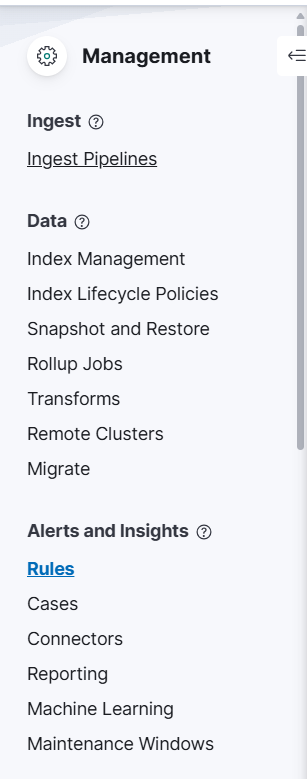
Create a New Rule
Click the "Create new rule" button.
Choose the type of rule you want to create. For example:
"Custom Query" if you want to search logs with specific keywords like Elastic-Alert or Elastic-Alert-Critical.
"Threshold" if you want alerts triggered when specific conditions are met.
I am selecting Elasticsearch query
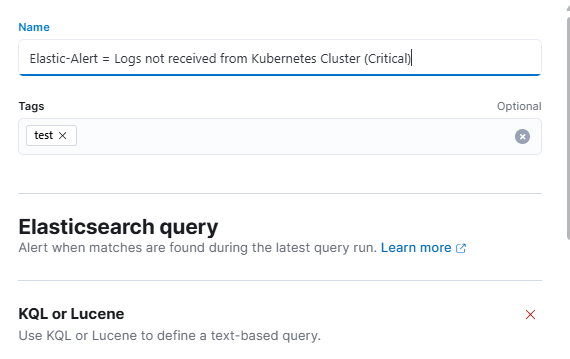
Define the Rule
Rule Name: Give your rule a meaningful name, like Elastic-Alert-Detection.
Index pattern: Select your Kibana index pattern, usually filebeat-* or logstash-*.
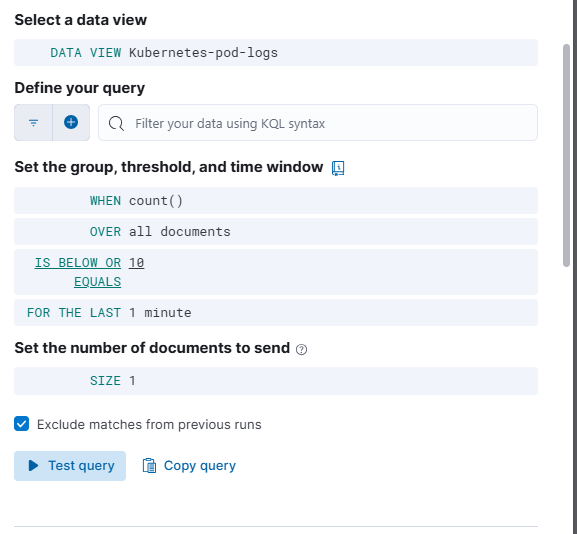
Custom Query: Add your query, e.g.,
kqlCopyEditmessage: "Elastic-Alert" OR message: "Elastic-Alert-Critical"
Rule Schedule: Set how often the rule will check for alerts (e.g., every 1 minute).
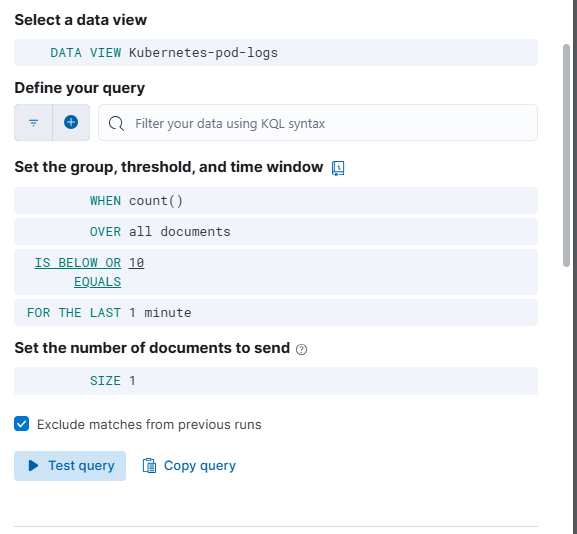
Set Up Actions (Optional)
You can add actions to trigger when a rule matches.
For example, you can send notifications to an email, webhook, or other services.
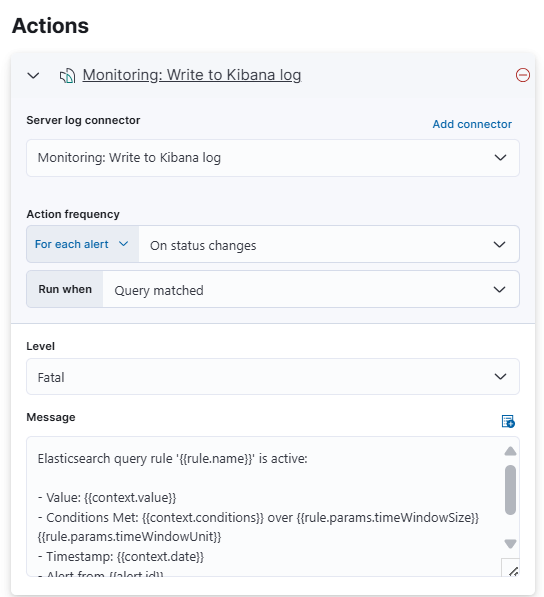
Select the connector type.
Select the connector type as Server log.

Review and Create
- Review your configuration and click on "Create rule".
Monitor and Test
Go to "Detections & Alerts" to monitor triggered alerts.
Test by generating logs with the keywords you set in the rule.
Feel free to copy this script and make changes according to your requirements. If you face any issues or need help setting this up, drop a comment below! 😊
Useful Links
]]>High Availability (HA) simply refers to the quality of a system to operate continuously without failure for a long period of time. HA solutions can be implemented using hardware and software, and one of the common solutions to implementing HA is clustering.
Let start with the configuration-
Requirements-
Two systems with Ubuntu 18.04 / CentOS 7 installed.
Configure static IP in both of them.
In my case node1 - 172.16.0.10/24 node2 - 172.16.0.20/24
Install NGINX and configure it.
Set the hostname in both machines and add hostname details in /etc/hosts.
Now start the configuration.
Configuration-
CentOS Users
First, we need to install the required packages for HA and nginx.
For enabling epel repositories in centos-
yum install epel-release
Now install all required packages.
yum install -y pcs corosync pacemaker nginx
Start and enable the service and add entries in firewall.
systemctl start/enable pcsd nginx
firewall-cmd --permanent --add-service=high-availability
firewall-cmd --permanent --add-service=nginx
firewall-cmd --reload
Ubuntu Users
sudo apt update
sudo apt install pcs pacemaker corosync nginx -y
systemctl start/enable pcsd nginx
sudo ufw allow 5405/udp
sudo ufw allow 2224/tcp
sudo ufw allow 3121/tcp
sudo ufw allow 21064/tcp
After installing these packages a user hacluster will be created automatically in both machines, now set the password for that user.
passwd hacluster
Now run auth command for authentication which is needed by pcs-
pcs cluster auth node1 node2 -u hacluster -p <password> --force
Now create a cluster and add both nodes in it.
pcs cluster setup --name mycluster node1 node2
or
pcs cluster setup name=mycluster node1 node2 --force
Now enable the cluster on boot and start the service.
pcs cluster start --all
pcs cluster enable --all
To check cluster status
pcs status
Configure Cluster options-
The first option is to disable STONITH (or Shoot The Other Node In The Head), the fencing implementation on Pacemaker.
This helps to protect your data from being corrupted by access. Right now, we will disable it since we have not configured the node.
To turn off STONITH, run the following command
pcs property set stonith-enabled=false
Next, also ignore the Quorum policy by running the following command:
pcs property set no-quorum-policy=ignore
To verify the configuration run following command-
pcs property list
Now it's time to add resources in the cluster-
In this section, we will look at how to add a cluster resource. We will configure a floating IP which is the IP address that can be instantly moved from one server to another within the same network or data centre. In short, a floating IP is a technical common term, used for IPs that are not bound strictly to one single interface.
pcs resource create floating_ip ocf:heartbeat:IPaddr2 ip=172.16.0.250 cidr_netmask=24 op monitor interval=60s
Note:- “ocf:heartbeat:IPaddr2”: tells Pacemaker which script to use, IPaddr2 in this case, which namespace it is in (pacemaker) and what standard it conforms to ocf.
“op monitor interval=60s”: instructs Pacemaker to check the health of this service every one minute by calling the agent’s monitor action.
If you want to add more resources you can add like this but right now I’m going with only one.
To check resource properties run following command-
pcs status resources
After that add example page in both Nginx servers and try to access with floating_ip which you configured.
Now if your one system goes down secondary will take over.
]]>We will install the OpenVPN server on Ubuntu 20.04. To do this, you need to log in as the root user. You also must know the public IP of the server with which clients will establish a secure VPN channel.
OpenVPN installation and configuration
We will use the script to install and configure all the necessary packages to start the OpenVPN server. All you have to do is provide it with the correct public IP address of your server.
Download it using the below command.
wget https://raw.githubusercontent.com/angristan/openvpn-install/master/openvpn-install.sh
Make it executable.
chmod +x openvpn-install.sh
disable ufw and firewalld if present
ufw disable
systemctl stop firewalld
Now run the script.
./openvpn-install.sh
You will be asked to confirm some parameters that have optimal values by default. The only thing that is worth checking is the public IP of the server. Other parameters should only be changed if you understand what you are doing and why.
You can also run the script without waiting for user input, in an automated manner.
AUTO_INSTALL=y ./openvpn-install.sh
In the last step, you need to set the client name and choose whether to protect the configuration with a password or not. For security reasons, it's better to set a password.
When the process is over, you can check whether the OpenVPN server is listening for incoming connections.
sudo netstat -tupln | grep openvpn
Then open /etc/openvpn/server.conf
vim /etc/openvpn/server.conf
You can now advertise the private network over OpenVPN . To do that add the below line with required changes. (make sure to change the subnet - i am using 172.16.0.0/24 )
push "route 172.16.0.1 255.255.255.0"
Iptables rule to advertise network
Make sure you add proper rules to advertise network.
if using iptables use the below command to enable advertising private networks
iptables -t nat -A POSTROUTING -o eth1 -j SNAT --to-source 172.16.0.1
*-o eth1 - private network interface name
--to-source 172.16.0.1 is private network IP of Openvpn server*
Enable Linux IP forwarding
Also, enable ip4 Forwarding in Linux if you are advertising a network
echo 1 > /proc/sys/net/ipv4/ip_forward
OR
sysctl -w net.ipv4.ip_forward=1
Then, to check type sysctl -p in the command line.
If using shorewall follow below steps.
Configuring Shore wall to work with OpenVPN
we are assuming normal Shorewall is configured and running.
Don't have Shorewall? you can just download it.
Configuration needed in Shorewall Files .
- edit zones
vim /etc/shorewall/zones
add the following
vpn ipv4
- edit interfaces
vim /etc/shorewall/interfaces
add the following
vpn tun0 dhcp,tcpflags,logmartians,nosmurfs,sourceroute=0,physical=tun0
- edit rules
vim /etc/shorewall/rules
add the following
ACCEPT net $FW udp 1194
- edit snat for masquerade routing policy or forwarding policy
vim /etc/shorewall/snat
add the following
SNAT(PUBLIC IP)   10.8.0.0/24          eth0
SNAT(172.16.0.1)   10.8.0.0/24          eth1
- edit policy
vim /etc/shorewall/policy
add the following in the 2nd line of rules
vpn     net             ACCEPT
vpn     $FW             ACCEPT
$FW     vpn             ACCEPT
loc     vpn             ACCEPT
vpn     loc             ACCEPT
OpenVPN client connection
We will use another Ubuntu machine to show the client connection process. You can configure any Linux system in this way or download the Windows client from the OpenVPN website: https://openvpn.net/community-downloads/
At the end of the OpenVPN server configuration process, you will see a message stating that the client configuration has been created and the path to it is specified. Download it to the client using SCP or SFTP or FTP.
Install the OpenVPN client.
sudo apt install openvpn
Now start the client and specify the path to the configuration downloaded from the server.
openvpn --config user.ovpn
The next line shows that the connection was established successfully.
Wed Dec 9 19:59:58 2022 Initialization Sequence Completed
Add more OpenVPN clients or delete one
To add or remove clients on the server or delete OpenVPN, run the script again and select the appropriate option.
./openvpn-install.sh
Output:
What do you want to do?
1) Add a new user
2) Revoke existing user
3) Remove OpenVPN
4) Exit
Select an option [1-4]:
select and enter the username which will provide a new client file.
That's it, Now you have an OpenVPN Server running with a client configuration.
This script can be found in the GitHub repo https://github.com/angristan/openvpn-install
Thanks, angristan for the script.
]]>Prometheus is a monitoring solution for storing time series data like metrics.
Grafana allows visualizing the data stored in Prometheus (and other sources).
The Alertmanager handles alerts sent by client applications such as the Prometheus server. It takes care of deduplicating, grouping, and routing them to the correct receiver integration such as email, PagerDuty, or OpsGenie. It also takes care of silencing and inhibition of alerts.
Node Exporter
Go to the home folder
cd
Download node Exporter from the below link
wget https://github.com/prometheus/node_exporter/releases/download/v1.3.1/node_exporter-1.3.1.linux-amd64.tar.gz
extract the downloaded file
tar -xvf node_exporter-1.3.1.linux-amd64.tar.gz
rename the folder
mv node_exporter-1.3.1.linux-amd64 node_exporter
add no shell user so all can run under this user
sudo useradd --system --no-create-home --shell /usr/sbin/nologin prometheus
go to folder
cd node_exporter
move node_exporter binary file to /usr/local/bin/
mv node_exporter /usr/local/bin/.
change ownership and permission of the moved file
sudo chown prometheus:prometheus /usr/local/bin/node_exporter
check the version if you need
node_exporter --version
create service file
sudo vim /etc/systemd/system/node_exporter.service
enter the below text to a file and save it
[Unit]
Description=Node exporter to collect machine metrics

[Service]
Restart=always
User=prometheus
ExecStart=/usr/local/bin/node_exporter
ExecReload=/bin/kill -HUP $MAINPID
TimeoutStopSec=20s
SendSIGKILL=no

[Install]
WantedBy=multi-user.target
If you wish to change the port of the node exporter use the below text in the service File
[Unit]
Description=Node exporter to collect machine metrics

[Service]
Restart=always
User=prometheus
ExecStart=/usr/local/bin/node_exporter --web.listen-address=:9500
ExecReload=/bin/kill -HUP $MAINPID
TimeoutStopSec=20s
SendSIGKILL=no

[Install]
WantedBy=multi-user.target
Reload service daemon
sudo systemctl daemon-reload
Start the node_exporter and enable it to run at bootup and check the status
sudo systemctl restart node_exporter.service
sudo systemctl enable node_exporter.service
sudo systemctl status node_exporter.service
Open port 9100
ubuntu
iptables -A INPUT -p tcp --dport 9100 -j ACCEPT
CENTOS or RHEL
iptables -I INPUT -p tcp --dport 9100 -j ACCEPT
Node Exporter will be running in port 9100
http://localhost:9100/ or http://<IP ADDRESS>:9100/
You can find the simple installation script on my GitHub page
Prometheus Installation
Download a tar file
wget https://github.com/prometheus/prometheus/releases/download/v2.36.1/prometheus-2.36.1.linux-amd64.tar.gz
extract a file
tar -xvf prometheus-2.36.1.linux-amd64.tar.gz
rename a folder
mv prometheus-2.36.1.linux-amd64 prometheus
move to /etc/ folder
mv prometheus /etc/prometheus
add a directory for Prometheus to store data
mkdir /etc/prometheus/data
change permissions
chown -R prometheus:prometheus /etc/prometheus
chmod -R 755 /etc/prometheus
edit prometheus.yml file
vim /etc/prometheus/prometheus.yml
add below config which is the default
global:
  scrape_interval: 15s
  evaluation_interval: 15s
alerting:
  alertmanagers:
  - static_configs:
    - targets:
      - 'localhost:9093'
rule_files:
  - alert.rules.yml
scrape_configs:
  - job_name: "prometheus_master"
    scrape_interval: 5s
    static_configs:
      - targets: ["localhost:9090"]
  - job_name: 'Nodes'
    scrape_interval: 5s
    static_configs:
      - targets: ["localhost:9100"]
  - job_name: 'Site Monitoring'
    metrics_path: /probe
    params:
      module: [http_2xx]
    static_configs:
      - targets:
        - https://www.google.com
        - https://www.google.co.in ## add your websites here
    relabel_configs:
      - source_labels: [__address__]
        target_label: __param_target
      - source_labels: [__param_target]
        target_label: instance
      - target_label: __address__
        replacement: localhost:9115
  - job_name: 'Internal Service Monitoring via Tcp '
    scrape_timeout: 15s
    scrape_interval: 15s
    metrics_path: /probe
    params:
      module: [tcp_connect]
    static_configs:
      - targets:
          - localhost:9090   ## add your tcp connections here
    relabel_configs:
      - source_labels: [__address__]
        target_label: __param_target
      - source_labels: [__param_target]
        target_label: instance
      - target_label: __address__
        replacement: 127.0.0.1:9115
below is the alert.rules.yml
groups:
 - name: Alert

   rules:
   - alert: InstanceDown
     expr: up == 0
     for: 1m
   - alert: LoadAverage5m High
     expr: node_load5 >= 5.0
     for: 3m
     annotations:
       summary: "Instance {{ $labels.instance }} - high load average"
       description: "{{ $labels.instance  }} (measured by {{ $labels.job }}) has high load average ({{ $value }}) over 5 minutes."
   - alert: MemoryUsage
     expr: 100 - ((node_memory_MemAvailable_bytes * 100) / node_memory_MemTotal_bytes) >= 95
     for: 5m
     annotations:
       summary: "Instance {{ $labels.instance }} - high memory usage"
       description: "{{ $labels.instance  }} (measured by {{ $labels.job }}) has high memory usage ({{ $value }}) over 5 minutes."
   - alert: DiskUsage
     expr: 100 - ((node_filesystem_avail_bytes{mountpoint="/",fstype!="rootfs"} * 100) / node_filesystem_size_bytes{mountpoint="/",fstype!="rootfs"}) >= 90
     for: 5m
     annotations:
       summary: "Instance {{ $labels.instance }} - high disk usage"
       description: "{{ $labels.instance  }} (measured by {{ $labels.job }}) has high disk usage ({{ $value }}) over 5 minutes."
   - alert: Host-Unusual-Network-Throughput-In
     expr: sum by (instance) (rate(node_network_receive_bytes_total[2m])) / 1024 / 1024 > 100
     for: 5m
     labels:
       severity: warning
     annotations:
       summary: Host unusual network throughput in (instance {{ $labels.instance }})
       description: "Host network interfaces are probably receiving too much data (> 100 MB/s)\n  VALUE = {{ $value }}\n  LABELS = {{ $labels }}"
   - alert: Host-Unusual-Network-ThroughputOut
     expr: sum by (instance) (rate(node_network_transmit_bytes_total[2m])) / 1024 / 1024 > 100
     for: 5m
     labels:
       severity: warning
     annotations:
       summary: Host unusual network throughput out (instance {{ $labels.instance }})
       description: "Host network interfaces are probably sending too much data (> 100 MB/s)\n  VALUE = {{ $value }}\n  LABELS = {{ $labels }}"
move the Prometheus file to /usr/local/bin/
mv /etc/prometheus/prometheus /usr/local/bin/.
create a systemd service file
sudo vim /etc/systemd/system/prometheus.service
add the following
[Unit]
Description=Monitoring system and time series database
Wants=network-online.target
After=network-online.target

[Service]
User=prometheus
Group=prometheus
Type=simple
ExecStart=/usr/local/bin/prometheus --config.file /etc/prometheus/prometheus.yml --storage.tsdb.path /etc/prometheus/data  \
--web.console.templates=/etc/prometheus/consoles \
--web.console.libraries=/etc/prometheus/console_libraries

ExecReload=/bin/kill -HUP $MAINPID
TimeoutStopSec=20s
SendSIGKILL=no
LimitNOFILE=8192

[Install]
WantedBy=multi-user.target
reload the daemon
sudo systemctl daemon-reload
start, enable and check the status of the service
sudo systemctl restart prometheus.service
sudo systemctl enable prometheus.service
sudo systemctl status prometheus.service
Open port 9090
ubuntu
iptables -A INPUT -p tcp --dport 9090 -j ACCEPT
CENTOS or RHEL
iptables -I INPUT -p tcp --dport 9090 -j ACCEPT
Prometheus will be running in port 9090
http://localhost:9090/ or http://<IP ADDRESS>:9090/
Grafana Installation
Run the following command for ubuntu
sudo apt-get install -y adduser libfontconfig1
wget https://dl.grafana.com/oss/release/grafana_8.5.5_amd64.deb
sudo dpkg -i grafana_8.5.5_amd64.deb
Run the following for the RPM-based servers
wget https://dl.grafana.com/oss/release/grafana-9.3.1-1.x86_64.rpm
sudo yum install grafana-9.3.1-1.x86_64.rpm
start and enable it
sudo /bin/systemctl daemon-reload
sudo /bin/systemctl enable grafana-server
systemctl start grafana-server
systemctl status grafana-server
Open port 3000
ubuntu
iptables -A INPUT -p tcp --dport 3000 -j ACCEPT
CENTOS or RHEL
iptables -I INPUT -p tcp --dport 3000 -j ACCEPT
open in browser
http://localhost:3000/ or http://<IP ADDRESS>:3000/
No go to the dashboard and enter the credentials
default user : admin
default pass  : admin
change the password at first login.
In Grafana add a data source
settings > data source > add Datasource — select Prometheus data source
Assuming Prometheus is on the same server, add the URL as http://localhost:9090/
Click on save and test
Go to dashboard > browse > Import - enter 1860 > import > select data source > save
Enjoy visualizing metrics ….!!!
Setting Up Alert manager
Download Alert-manager
wget https://github.com/prometheus/alertmanager/releases/download/v0.24.0/alertmanager-0.24.0.linux-amd64.tar.gz
Extract it
tar -xvf alertmanager-0.24.0.linux-amd64.tar.gz
move alertmanager
mv alertmanager-0.24.0.linux-amd64 /opt/alertmanager
change permissions
cd /opt/alertmanager/
chown prometheus:prometheus -R /opt/alertmanager
mv alertmanager binary
cp /opt/alertmanager/alertmanager /usr/local/bin/
cp /opt/alertmanager/amtool /usr/local/bin/
Add systemd service
vim /etc/systemd/system/alertmanager.service
Add below content
[Unit]
Description=Alertmanager
Wants=network-online.target
After=network-online.target

[Service]
User=alertmanager
Group=alertmanager
Type=simple
WorkingDirectory=/opt/alertmanager/
ExecStart=/usr/local/bin/alertmanager --config.file=/opt/alertmanager/alertmanager.yml --web.external-url http://0.0.0.0:9093

[Install]
WantedBy=multi-user.target
save and exit
edit alertmanager configs
vim /opt/alertmanager/alertmanager.yml
Add below config
route:
 group_by: [Alertname]
 # If an alert isn't caught by a route, send it slack.
 repeat_interval: 1h
 receiver: slack_general
 routes:

  # Send severity=slack alerts to slack.
  - match:
          #severity: slack
    receiver: slack_general

receivers:
- name: slack_general
  slack_configs:
  - api_url: https://chat.alerting.com/hooks/ksgdfbshdfsjhfw
    channel: '#alerts'
  email_configs:
  - to: '[email protected],[email protected]'
    from: '[email protected]'
    smarthost: smtp.gmail.com.com:587
    auth_username: "[email protected]"
    auth_identity: "[email protected]"
    auth_password: "password"
    send_resolved: true
run below commands
systemctl daemon-reload
systemctl status prometheus
systemctl restart alertmanager
systemctl status alertmanager
Setting Up BlackBox
Download Latest BlackBox Exporter
wget https://github.com/prometheus/blackbox_exporter/releases/download/v0.22.0/blackbox_exporter-0.22.0.linux-amd64.tar.gz
Extract it
tar -xvf blackbox_exporter-0.22.0.linux-amd64.tar.gz
Copy BlackBox binary to /usr/local/bin
cp blackbox_exporter-0.22.0.linux-amd64/blackbox_exporter /usr/local/bin/blackbox_exporter
change permissions
chown prometheus:prometheus /usr/local/bin/blackbox_exporter
Remove old files
rm -rf blackbox_exporter-0.22.0.linux-amd64*
make a new directory
mkdir /etc/blackbox_exporter
Add the Config file
vim /etc/blackbox_exporter/blackbox.yml
Add the following
modules:
  http_2xx:
    prober: http
    timeout: 15s
    http:
      fail_if_not_ssl: true
      fail_if_ssl: false
      method: GET
      no_follow_redirects: false
      preferred_ip_protocol: ip4
      valid_http_versions:
        - HTTP/1.1
        - HTTP/2.0
  http_post_2xx:
    prober: http
    http:
      method: POST
  tcp_connect:
    prober: tcp
  pop3s_banner:
    prober: tcp
    tcp:
      query_response:
      - expect: "^+OK"
      tls: true
      tls_config:
        insecure_skip_verify: false
  grpc:
    prober: grpc
    grpc:
      tls: true
      preferred_ip_protocol: "ip4"
  grpc_plain:
    prober: grpc
    grpc:
      tls: false
      service: "service1"
  ssh_banner:
    prober: tcp
    tcp:
      query_response:
      - expect: "^SSH-2.0-"
      - send: "SSH-2.0-blackbox-ssh-check"
  irc_banner:
    prober: tcp
    tcp:
      query_response:
      - send: "NICK prober"
      - send: "USER prober prober prober :prober"
      - expect: "PING :([^ ]+)"
        send: "PONG ${1}"
      - expect: "^:[^ ]+ 001"
  icmp:
    prober: icmp
Add service file
vim /etc/systemd/system/blackbox_exporter.service
Copy & paste the following
[Unit]
Description=Blackbox Exporter Service
Wants=network-online.target
After=network-online.target

[Service]
Type=simple
User=root
Group=root
ExecStart=/usr/local/bin/blackbox_exporter \
  --config.file=/etc/blackbox_exporter/blackbox.yml \
  --web.listen-address=0.0.0.0:9115

Restart=always

[Install]
WantedBy=multi-user.target
Change the permissions of a config file
chown prometheus:prometheus /etc/blackbox_exporter/blackbox.yml
Restart services
systemctl daemon-reload
systemctl start blackbox_exporter
systemctl status blackbox_exporter
systemctl enable blackbox_exporter
You're good to GO........!
Note: You can also add the BlackBox exporter dashboard to grafana dashboard with dashboard ID 7587 with Prometheus data source
]]>MongoDB, the database for modern applications. If you are not familiar with MongoDB, its a general purpose, document based, distributed database.
What are we building ?
MongoDB Replica Sets are Groups of mongod processes that maintain the same dataset. Replica Sets provide high availability and redundancy. Replication provides redundancy and increases data availability. Copies of the data are replicated across nodes (mongod processes), replication provides a level of fault tolerance against the loss of a single database server.
Replication can provide increased read capacity, as applications can be configured to read from the slave nodes and write to the primary nodes. With data locality, you can spread your nodes across regions and let the applications read from the nodes closest to them.
In a replica set, a primary receives all the write operations and you can only have one primary capable of confirming writes. The primary records all the changes in its oplog.
For more information on MongoDB terminology, see their documentation
Install MongoDB
I have provisioned 3 Ubuntu 20.04 nodes which is in a private subnet, so I will be making use of private networking. MongoDB relies on reverse DNS lookups, so I will be adding the private addresses in my hosts file for each node, as all my communication between the servers will happen via private networking:
cat /etc/hosts
10.163.68.26 mongodb-1.pvt
10.163.68.12 mongodb-2.pvt
10.163.68.9  mongodb-3.pvt
This installation is for ubuntu 20.04, if you are using another distribution, have a look at their documentation.
Go ahead update the repositories, add the mongodb repostory, update and install mongodb:
sudo apt update
sudo apt install gnupg -y
wget -qO - https://www.mongodb.org/static/pgp/server-5.0.asc | sudo apt-key add -
echo "deb [ arch=amd64,arm64 ] https://repo.mongodb.org/apt/ubuntu focal/mongodb-org/5.0 multiverse" | sudo tee /etc/apt/sources.list.d/mongodb-org-5.0.list
sudo apt update
sudo apt install mongodb-org -y
Verify that mongodb is installed:
mongod --version
db version v5.0.9
Keyfile Authorization
All 3 nodes will use the same pre-shared key to authenticate the members that will contribute to the replica set. Let's create the directory where the file will be stored:
sudo mkdir /var/lib/mongodb-pki
Use openssl or anything similar to generate a random key:
openssl rand -base64 741 > keyfile
Copy the file over to the other nodes with scp:
$ scp ./keyfile mongodb-2.pvt:/tmp/keyfile
$ scp ./keyfile mongodb-3.pvt:/tmp/keyfile
Move the keyfile in place on all 3 nodes and change the permissions of the file:
$ sudo mv keyfile /var/lib/mongodb-pki/keyfile
$ sudo chmod 600 /var/lib/mongodb-pki/keyfile
$ sudo chown -R mongodb:mongodb /var/lib/mongodb-pki
Configure Mongod
Time to configure our mongod instances, we will configure a configuration for each node. So for the first node:
storage:
  dbPath: /var/lib/mongodb
  journal:
    enabled: true

systemLog:
  destination: file
  logAppend: true
  path: /var/log/mongodb/mongod.log

net:
  port: 27017
  bindIp: 127.0.0.1,10.163.68.26

processManagement:
  timeZoneInfo: /usr/share/zoneinfo

#log slow operations
operationProfiling:
  mode: "slowOp"
  slowOpThresholdMs: 50

security:
  authorization: enabled
  keyFile: /var/lib/mongodb-pki/keyfile

replication:
  replSetName: my-demo-replset
For the 2nd node:
storage:
  dbPath: /var/lib/mongodb
  journal:
    enabled: true

systemLog:
  destination: file
  logAppend: true
  path: /var/log/mongodb/mongod.log

net:
  port: 27017
  bindIp: 127.0.0.1,10.163.68.12

processManagement:
  timeZoneInfo: /usr/share/zoneinfo

operationProfiling:
  mode: "slowOp"
  slowOpThresholdMs: 50

security:
  authorization: enabled
  keyFile: /var/lib/mongodb-pki/keyfile

replication:
  replSetName: my-demo-replset
And for the 3rd node:
storage:
  dbPath: /var/lib/mongodb
  journal:
    enabled: true

systemLog:
  destination: file
  logAppend: true
  path: /var/log/mongodb/mongod.log

net:
  port: 27017
  bindIp: 127.0.0.1,10.163.68.9

processManagement:
  timeZoneInfo: /usr/share/zoneinfo

operationProfiling:
  mode: "slowOp"
  slowOpThresholdMs: 50

security:
  authorization: enabled
  keyFile: /var/lib/mongodb-pki/keyfile

replication:
  replSetName: my-demo-replset
Wired tiger Conf
WiredTiger is the storage engine used by MongoDB. To configure the WiredTiger cache in a mongod.conf file, you can add the following options:
# WiredTiger cache configuration
storage:
    engine: "wiredTiger"
    wiredTiger:
        engineConfig:
            cacheSizeGB: <cache_size_in_GB>
cacheSizeGB: The size of the WiredTiger cache in gigabytes. This value should be set based on the amount of available memory on the server and the working set size of your data.
It is important to note that the cacheSizeGB setting is a target and not a hard limit. MongoDB will use as much memory as it needs but it will not use more than the specified limit.
You can also use the cachePressure option to adjust the cache pressure.
# WiredTiger cache configuration
storage:
    engine: "wiredTiger"
    wiredTiger:
        engineConfig:
            cacheSizeGB: <cache_size_in_GB>
            cachePressure: <value>
The cachePressure setting adjusts the balance between the WiredTiger cache and the file system cache. This can be used to make MongoDB more aggressive in evicting pages from the WiredTiger cache if memory is tight.
It is important to monitor your cache usage with the db.serverStatus().wiredTiger.cache command and adjust the settings accordingly.
Enable and Start Mongod
Enable the service and start the mongod service:
$ sudo systemctl enable mongod
$ sudo systemctl restart mongod
Verify that the process has started:
sudo systemctl status mongod
  mongod.service - MongoDB Database Server
   Loaded: loaded (/lib/systemd/system/mongod.service; enabled; vendor preset: enabled)
   Active: active (running) since Tue 2022-06-20 21:37:52 BST; 26s ago
     Docs: https://docs.mongodb.org/manual
   Main PID: 2950 (mongod)
   CGroup: /system.slice/mongod.service
           └─2950 /usr/bin/mongod --config /etc/mongod.conf

Jul 02 21:37:52 mongodb-1 systemd[1]: Started MongoDB Database Server.
Verify that the port is listening:
sudo netstat -tulpn | grep -E '(State|2950)'
Proto Recv-Q Send-Q Local Address           Foreign Address         State       PID/Program name
tcp        0      0 127.0.0.1:27017         0.0.0.0:*               LISTEN      2950/mongod
tcp        0      0 10.163.68.26:27017      0.0.0.0:*               LISTEN      2950/mongod
Go ahead and do the exact same on the other 2 nodes.
Initialize the MongoDB Replica Set
When mongodb starts for the first time it allows an exception that you can logon without authentication to create the root account, but only on localhost. The exception is only valid until you create the user:
mongo --host 127.0.0.1 --port 27017
MongoDB shell version v5.0.9
connecting to: mongodb://127.0.0.1:27017/?gssapiServiceName=mongodb
Implicit session: session { "id" : UUID("14ac25ae-016a-4456-b451-60b5d7e866c7") }
MongoDB server version: 5.0.9
Welcome to the MongoDB shell.
>
Switch to the admin database and initialize the mongodb replicaset:
> use admin
switched to db admin
> rs.initiate()
{
    "info2" : "no configuration specified. Using a default configuration for the set",
    "me" : "10.163.68.26:27017",
    "ok" : 1
}
Now that we have initialized our replicaset config, create the admin user and apply the root role:
my-demo-replset:PRIMARY> db.createUser({user: "mongo-admin", pwd: "mongo-pass", roles: [{role: "root", db: "admin"}]})
Successfully added user: {
    "user" : "mongo-admin",
    "roles" : [
        {
            "role" : "root",
            "db" : "admin"
        }
    ]
}
my-demo-replset:PRIMARY> exit
Now that we have exited the mongo shell, logon to mongodb with the created credentials also pointing at the replica set in the connection string:
mongo --host my-demo-replset/mongodb-1.pvt:27017 --username mongo-admin --password mongo-pass --authenticationDatabase admin

MongoDB shell version v5.0.9
connecting to: mongodb://mongodb-1.pvt:27017/?authSource=admin&gssapiServiceName=mongodb&replicaSet=my-demo-replset
2022-06-20T21:48:05.486+0100 I NETWORK  [js] Successfully connected to 10.163.68.26:27017 (1 connections now open to 10.163.68.26:27017 with a 5 second timeout)
MongoDB server version: 4.0.10
my-demo-replset:PRIMARY>
Have a look at the replica set status using rs.status(), we will see the members in our replica set. At this moment it will only be one node as we have only initiated the one node. This node will elected itself as a primary. We still need to add the other 2 nodes to the replica set.
Have a look at the status:
my-demo-replset:PRIMARY> rs.status()
{
    "set" : "my-demo-replset",
    "date" : ISODate("2022-06-20T20:49:19.596Z"),
    "myState" : 1,
    "term" : NumberLong(1),
    "syncingTo" : "",
    "syncSourceHost" : "",
    "syncSourceId" : -1,
    "heartbeatIntervalMillis" : NumberLong(2000),
    "optimes" : {
        "lastCommittedOpTime" : {
            "ts" : Timestamp(1562100552, 1),
            "t" : NumberLong(1)
        },
        "readConcernMajorityOpTime" : {
            "ts" : Timestamp(1562100552, 1),
            "t" : NumberLong(1)
        },
        "appliedOpTime" : {
            "ts" : Timestamp(1562100552, 1),
            "t" : NumberLong(1)
        },
        "durableOpTime" : {
            "ts" : Timestamp(1562100552, 1),
            "t" : NumberLong(1)
        }
    },
    "lastStableCheckpointTimestamp" : Timestamp(1562100512, 1),
    "members" : [
        {
            "_id" : 0,
            "name" : "10.163.68.26:27017",
            "health" : 1,
            "state" : 1,
            "stateStr" : "PRIMARY",
            "uptime" : 687,
            "optime" : {
                "ts" : Timestamp(1562100552, 1),
                "t" : NumberLong(1)
            },
            "optimeDate" : ISODate("2022-06-20T20:49:12Z"),
            "syncingTo" : "",
            "syncSourceHost" : "",
            "syncSourceId" : -1,
            "infoMessage" : "",
            "electionTime" : Timestamp(1562100271, 2),
            "electionDate" : ISODate("2022-06-20T20:44:31Z"),
            "configVersion" : 1,
            "self" : true,
            "lastHeartbeatMessage" : ""
        }
    ],
    "ok" : 1,
    "operationTime" : Timestamp(1562100552, 1),
    "$clusterTime" : {
        "clusterTime" : Timestamp(1562100552, 1),
        "signature" : {
            "hash" : BinData(0,"ftyRJpO6BJ5U/oSfP+LzGUeGJvo="),
            "keyId" : NumberLong("6709169581312704514")
        }
    }
}
We can also as the node if its the primary node, using rs.isMaster():
my-demo-replset:PRIMARY> rs.isMaster()
{
    "hosts" : [
        "10.163.68.26:27017"
    ],
    "setName" : "my-demo-replset",
    "setVersion" : 1,
    "ismaster" : true,
    "secondary" : false,
    "primary" : "10.163.68.26:27017",
    "me" : "10.163.68.26:27017",
    "electionId" : ObjectId("7fffffff0000000000000001"),
    "lastWrite" : {
        "opTime" : {
            "ts" : Timestamp(1562100572, 1),
            "t" : NumberLong(1)
        },
        "lastWriteDate" : ISODate("2022-06-20T20:49:32Z"),
        "majorityOpTime" : {
            "ts" : Timestamp(1562100572, 1),
            "t" : NumberLong(1)
        },
        "majorityWriteDate" : ISODate("2022-06-20T20:49:32Z")
    },
    "maxBsonObjectSize" : 16777216,
    "maxMessageSizeBytes" : 48000000,
    "maxWriteBatchSize" : 100000,
    "localTime" : ISODate("2022-06-20T20:49:41.764Z"),
    "logicalSessionTimeoutMinutes" : 30,
    "minWireVersion" : 0,
    "maxWireVersion" : 7,
    "readOnly" : false,
    "ok" : 1,
    "operationTime" : Timestamp(1562100572, 1),
    "$clusterTime" : {
        "clusterTime" : Timestamp(1562100572, 1),
        "signature" : {
            "hash" : BinData(0,"qn7JFMzIuaiK9sVhNkLAq7NqsMI="),
            "keyId" : NumberLong("6709169581312704514")
        }
    }
}
Adding Nodes to the Replica Set
Let's add the second node, mongodb-2.pvt to the replica set:
my-demo-replset:PRIMARY> rs.add("mongodb-2.pvt:27017")
{
    "ok" : 1,
    "operationTime" : Timestamp(1562100629, 1),
    "$clusterTime" : {
        "clusterTime" : Timestamp(1562100629, 1),
        "signature" : {
            "hash" : BinData(0,"wTNLWmROCfMKaBT4hjZGIyaiCTc="),
            "keyId" : NumberLong("6709169581312704514")
        }
    }
}
And also adding the 3rd node, mongodb-3.pvt the the replica set:
my-demo-replset:PRIMARY> rs.add("mongodb-3.pvt:27017")
{
    "ok" : 1,
    "operationTime" : Timestamp(1562100664, 1),
    "$clusterTime" : {
        "clusterTime" : Timestamp(1562100664, 1),
        "signature" : {
            "hash" : BinData(0,"WeAHspyluGFOOfyxnVS7pCKHPN8="),
            "keyId" : NumberLong("6709169581312704514")
        }
    }
}
Now when we look at the replica set status, we should see that the 3 nodes will be part of the replica set:
my-demo-replset:PRIMARY> rs.status()
{
    "set" : "my-demo-replset",
    "date" : ISODate("2022-06-20T20:51:20.003Z"),
    "myState" : 1,
    "term" : NumberLong(1),
    "syncingTo" : "",
    "syncSourceHost" : "",
    "syncSourceId" : -1,
    "heartbeatIntervalMillis" : NumberLong(2000),
    "optimes" : {
        "lastCommittedOpTime" : {
            "ts" : Timestamp(1562100664, 1),
            "t" : NumberLong(1)
        },
        "readConcernMajorityOpTime" : {
            "ts" : Timestamp(1562100664, 1),
            "t" : NumberLong(1)
        },
        "appliedOpTime" : {
            "ts" : Timestamp(1562100664, 1),
            "t" : NumberLong(1)
        },
        "durableOpTime" : {
            "ts" : Timestamp(1562100664, 1),
            "t" : NumberLong(1)
        }
    },
    "lastStableCheckpointTimestamp" : Timestamp(1562100629, 1),
    "members" : [
        {
            "_id" : 0,
            "name" : "10.163.68.26:27017",
            "health" : 1,
            "state" : 1,
            "stateStr" : "PRIMARY",
            "uptime" : 808,
            "optime" : {
                "ts" : Timestamp(1562100664, 1),
                "t" : NumberLong(1)
            },
            "optimeDate" : ISODate("2022-06-20T20:51:04Z"),
            "syncingTo" : "",
            "syncSourceHost" : "",
            "syncSourceId" : -1,
            "infoMessage" : "",
            "electionTime" : Timestamp(1562100271, 2),
            "electionDate" : ISODate("2022-06-20T20:44:31Z"),
            "configVersion" : 3,
            "self" : true,
            "lastHeartbeatMessage" : ""
        },
        {
            "_id" : 1,
            "name" : "mongodb-2.pvt:27017",
            "health" : 1,
            "state" : 2,
            "stateStr" : "SECONDARY",
            "uptime" : 50,
            "optime" : {
                "ts" : Timestamp(1562100664, 1),
                "t" : NumberLong(1)
            },
            "optimeDurable" : {
                "ts" : Timestamp(1562100664, 1),
                "t" : NumberLong(1)
            },
            "optimeDate" : ISODate("2022-06-20T20:51:04Z"),
            "optimeDurableDate" : ISODate("2022-06-20T20:51:04Z"),
            "lastHeartbeat" : ISODate("2022-06-20T20:51:18.288Z"),
            "lastHeartbeatRecv" : ISODate("2022-06-20T20:51:19.843Z"),
            "pingMs" : NumberLong(1),
            "lastHeartbeatMessage" : "",
            "syncingTo" : "",
            "syncSourceHost" : "",
            "syncSourceId" : -1,
            "infoMessage" : "",
            "configVersion" : 3
        },
        {
            "_id" : 2,
            "name" : "mongodb-3.pvt:27017",
            "health" : 1,
            "state" : 2,
            "stateStr" : "SECONDARY",
            "uptime" : 15,
            "optime" : {
                "ts" : Timestamp(1562100664, 1),
                "t" : NumberLong(1)
            },
            "optimeDurable" : {
                "ts" : Timestamp(1562100664, 1),
                "t" : NumberLong(1)
            },
            "optimeDate" : ISODate("2022-06-20T20:51:04Z"),
            "optimeDurableDate" : ISODate("2022-06-20T20:51:04Z"),
            "lastHeartbeat" : ISODate("2022-06-20T20:51:18.292Z"),
            "lastHeartbeatRecv" : ISODate("2022-06-20T20:51:19.662Z"),
            "pingMs" : NumberLong(1),
            "lastHeartbeatMessage" : "",
            "syncingTo" : "",
            "syncSourceHost" : "",
            "syncSourceId" : -1,
            "infoMessage" : "",
            "configVersion" : 3
        }
    ],
    "ok" : 1,
    "operationTime" : Timestamp(1562100664, 1),
    "$clusterTime" : {
        "clusterTime" : Timestamp(1562100664, 1),
        "signature" : {
            "hash" : BinData(0,"WeAHspyluGFOOfyxnVS7pCKHPN8="),
            "keyId" : NumberLong("6709169581312704514")
        }
    }
}
Connecting to the Replica set
Connecting to a replicaset will always route you to the primary:
$ mongo --host my-demo-replset/mongodb-2.pvt:27017 --username mongo-admin --password mongo-pass --authenticationDatabase admin

MongoDB shell version v5.0.9
connecting to: mongodb://mongodb-2.pvt:27017/?authSource=admin&gssapiServiceName=mongodb&replicaSet=my-demo-replset
2022-06-20T21:53:03.943+0100 I NETWORK  [js] Starting new replica set monitor for my-demo-replset/mongodb-2.pvt:27017
2022-06-20T21:53:03.945+0100 I NETWORK  [js] Successfully connected to mongodb-2.pvt:27017 (1 connections now open to mongodb-2.pvt:27017 with a 5 second timeout)
2022-06-20T21:53:03.946+0100 I NETWORK  [js] Successfully connected to 10.163.68.26:27017 (1 connections now open to 10.163.68.26:27017 with a 5 second timeout)
2022-06-20T21:53:03.946+0100 I NETWORK  [js] changing hosts to my-demo-replset/10.163.68.26:27017,mongodb-2.pvt:27017,mongodb-3.pvt:27017 from my-demo-replset/mongodb-2.pvt:27017
my-demo-replset:PRIMARY>
We can verify if we are on the primary by doing the following:
my-demo-replset:PRIMARY> rs.isMaster()['ismaster']
true

my-demo-replset:PRIMARY> rs.isMaster()['me']
10.163.68.26:27017
If you exit and connect without the replica set in the connection string, then it will direct you to that node:
$ mongo --host mongodb-2.pvt:27017 --username mongo-admin --password mongo-pass --authenticationDatabase admin

MongoDB shell version v5.0.9
connecting to: mongodb://mongodb-2.pvt:27017/?authSource=admin&gssapiServiceName=mongodb
Implicit session: session { "id" : UUID("3c343871-8814-4136-859d-350c78c2a2a7") }
MongoDB server version: 4.0.10
my-demo-replset:SECONDARY>
Reading from Slave Nodes
When we have a replica set we can write to our Primary (master) node and Read from our Secondary (slave) nodes. Before we can read from the secondary nodes, we need to tell mongodb that we want to read.
By default when you connect to a secondary node and want to read you will get this exception:
my-demo-replset:SECONDARY> show databases;
2022-06-20T21:59:13.169+0100 E QUERY    [js] Error: listDatabases failed:{
    "operationTime" : Timestamp(1562101152, 1),
    "ok" : 0,
    "errmsg" : "not master and slaveOk=false",
    "code" : 13435,
    "codeName" : "NotMasterNoSlaveOk”,
...
We first need to instruct mongodb that we want to read:
my-demo-replset:SECONDARY> rs.slaveOk()
Now that we have done that, we can read from the secondary:
my-demo-replset:SECONDARY> show databases;
admin   0.000GB
config  0.000GB
local   0.000GB
Upgrading a MongoDB Replica Set
When you want to upgrade a mongodb node in a replica set, you can accomplish that with a rolling upgrade.
You will first shutdown a secondary, do the upgrade, start the node, then upgrade the other secondary. When all the secondaries are upgraded, then upgrade the primary. This involves initiating a stepdown on the primary which will trigger an election, where one of the secondary nodes will be promoted as a primary, once the primary is selected on another node, the old primary can be upgraded.
The correct way of shutting down a mongodb node is with using db.shutdownServer():
my-demo-replset:PRIMARY> use admin
switched to db admin
my-demo-replset:PRIMARY> db.shutdownServer()
And to stepdown a node from primary to secondary:
my-demo-replset:PRIMARY> rs.stepDown()
my-demo-replset:SECONDARY>
Prioritizing Primary in Replicaset
you can use the rs.conf() command to change the priority and vote of a member in a replica set:
# Connect to the primary node of the replica set
mongo --host <primary_hostname> --port <primary_port>

# Get the current configuration of the replica set
rs.conf()

# Update the priority and vote of a member
rs.conf({
    _id: <replica_set_name>,
    members: [
        {
            _id: 0,
            host: <primary_hostname>:<primary_port>,
            priority: 2,
            votes: 1
        },
        {
            _id: 1,
            host: <secondary_hostname_1>:<secondary_port_1>,
            priority: 1,
            votes: 1
        },
        {
            _id: 2,
            host: <secondary_hostname_2>:<secondary_port_2>,
            priority: 0,
            votes: 0
        }
    ]
})
priority: is a value between 0 and 1000, with 1000 being the highest possible priority. By default, all members have a priority of 1.
votes: 0 or 1, with 1 meaning the member can participate in elections and 0 meaning it cannot. By default, all members have a vote of 1.
WebSockets were introduced to open two-way interactive communication sessions, between a client and a server. This paved the way for event-driven responses, such as notifying a user of new content without refreshing the page.
Dealing with WebSockets - Apache
Handling WebSockets in Apache Web Server 2.4 isn’t as straight forward as with other web servers. The Apache Config with a proxy pass will work most of the time
But when the web socket comes to picture, sometimes the site breaks in the browsers
In the below config we will assume you have already enabled proxy pass for a website. To enable WebSocket to reverse proxying, the Apache modules for handling such requests must be enabled.
Ubuntu
If you are running Ubuntu 16.04 or higher, run the following commands to enable the modules.
a2enmod proxy
a2enmod proxy_http
a2enmod proxy_wstunnel
it will ask you to restart apache2. do it.
systemctl restart apache2
CentOS 7
The prerequisite modules are already enabled by default on a CentOS 7 install of httpd. Enabling and disabling these modules is done by editing a configuration file.
Open the module configuration file for proxies.
sudo vi /etc/httpd/conf.modules.d/00-proxy.conf
All modules related to proxying are listed in this configuration file. Verify that the following lines exist and are uncommented.
LoadModule proxy_http_module modules/mod_proxy_http.so
LoadModule proxy_wstunnel modules/mod_proxy_wstunnel.so
If you made any changes to the file, save them now.
Restart Apache Web Server to apply your changes.
sudo systemctl restart httpd
mod_proxy = It provides support for the tunnelling of web socket connections to a backend websockets server. The connection is automatically upgraded to a websocket connection:
Things to be considered
Upgrade: WebSocket

Connection: Upgrade
Proxying requests to a websockets server like echo.websocket.org can be done using the ProxyPass directive:
ProxyPass "/ws2/"  "ws://echo.websocket.org/"

ProxyPass "/wss2/" "wss://echo.websocket.org/"
Proxying both HTTP and websockets at the same time, with a specific set of URL's being websocket-only, can be done by specifying the websockets ProxyPass directive before the HTTP directive:
ProxyPassMatch  ^/(myApp/ws)$  ws://backend.example.com:9080/$1

ProxyPass / http://backend.example.com:9080/
Proxying both HTTP and websockets at the same time, where the websockets URL's are not websocket-only or not known in advance can be done by using the RewriteRule directive to configure the websockets proxying:
ProxyPass / http://example.com:9080/

RewriteEngine on
RewriteCond %{HTTP:Upgrade} websocket [NC]
RewriteCond %{HTTP:Connection} upgrade [NC]
RewriteRule  ^/?(.*) "ws://example.com:9080/$1" [P,L]
The web proxy port and host should be proper . add and save and restart httpd or Apache it should work properly
Note : if using proxy pass and websocket at same time the rewrite directive should be below proxypass directive.
Dealing with Websockets - Nginx
NGINX supports WebSocket by allowing a tunnel to be set up between a client and a backend server. For NGINX to send the Upgrade request from the client to the backend server, the Upgrade and Connection headers must be set explicitly, as in this example:-
location /wsapp/ {
    proxy_pass http://wsbackend;
    proxy_http_version 1.1;
    proxy_set_header Upgrade $http_upgrade;
    proxy_set_header Connection "Upgrade";
    proxy_set_header Host $host;
}
You also need to enable Connection and http upgrade in http section
http {
    map $http_upgrade $connection_upgrade {
        default upgrade;
        '' close;
    }
You may also need to configure a upstream as below
upstream wsbackend {
        server 192.168.100.10:8010;
    }
8010 is port where ws is running
Reload nginx
systemctl reload nginx
Once this is done, NGINX deals with this as a WebSocket connection.
Visit the link for more info on Nginx Document . It's pretty straight forward .
HAProxy & Websockets
There are 2 protocols embedded in websockets:
HTTP: for the websocket setup
TCP: websocket data exchange
HAProxy must be able to support websockets on these two protocols without breaking the TCP connection at any time.
There are 2 things to take care of:
being able to switch a connection from HTTP to TCP without breaking it
smartly manage timeouts for both protocols at the same time
Fortunately, HAProxy embeds all you need to load-balance properly websockets and can meet the 2 requirements above.
It can even route regular HTTP traffic from websocket traffic to different backends and perform websocket aware health check (setup phase only).
During the setup phase, HAProxy can work in HTTP mode, processing layer 7 information. It detects automatically the Connection: Upgrade exchange and is ready to switch to tunnel mode if the upgrade negotiation succeeds. During this phase, there are 3 timeouts involved:
timeout client: client inactivity
timeout connect: allowed TCP connection establishment time
timeout server: allowed time to the server to process the request
If everything goes well, the websocket is established, then HAProxy fails over to tunnel mode, no data is analyzed anymore (and anyway, websocket does not speak HTTP). There is a single timeout involved:
timeout tunnel: take precedence over client and server timeout
timeout connect is not used since the TCP connection is already established.
Just make sure You have a following section in ha proxy config.
  timeout client          25s
  timeout connect          5s
  timeout server          25s
  timeout tunnel        3600s
  timeout http-keep-alive  1s
  timeout http-request    15s
Happy Dealing with websockets .
If you find it usefull . Follow me on github
]]>
GlusterFS is an open-source, distributed file system that is designed to scale to multiple petabytes of storage. It uses a client-server architecture that allows for deployment across physical, virtual, and cloud environments. GlusterFS employs a distributed metadata architecture that ensures high availability and performance, making it a popular choice for big data and high-performance computing environments. It supports various storage protocols, including NFS, SMB, and FUSE, and provides data redundancy and replication for fault tolerance. GlusterFS can be managed through a web-based graphical user interface or a command-line interface, making it accessible for both novice and experienced users. It integrates with many other open-source tools and platforms, such as Kubernetes, OpenStack, and Hadoop. GlusterFS is owned and maintained by Red Hat, but it is open source and free to use. Its vibrant community of developers and users contribute to its ongoing development and support, ensuring its continued relevance in the rapidly evolving world of distributed storage.
Server side Installation
Try to perform the actions in new servers and make sure you don't get stuck in dpkg and package errors
ADD host entry so that glusterfs can use dns names instead of IPs
sudo vim /etc/hosts
Paste the following (change IP's according to you )
172.16.0.119   glusterfs1
172.16.0.138   glusterfs2
Install necessary packages ( we are installing version-10)
For Ubuntu
apt install software-properties-common -y  && \
echo \n | sudo add-apt-repository ppa:gluster/glusterfs-10 && \
sudo apt update -y  && \
apt install glusterfs-server -y  && apt install glusterfs-client -y
Check if Glusterfs is started
systemctl is-active glusterd.service
If not start the default services .
systemctl start gluster-ta-volume.service
systemctl start glusterd.service
systemctl start glustereventsd.service
systemctl start glusterfssharedstorage.service
Enable the services so that they can start at startup
systemctl enable gluster-ta-volume.service
systemctl enable glusterd.service
systemctl enable glustereventsd.service
systemctl enable glusterfssharedstorage.service
systemctl status glusterd
Glusterd is the main process which should be in running state ( ignore other services if it throws any errors )
For Rhel and CentOS
yum install centos-release-gluster
Note : add Epel repo to avoid dependencies issue
sudo yum -y install epel-release
Note: On CentOS 6 , you need to install xfsprogs package to be able to format an XFS file system
yum install xfsprogs
Install glusterfs
yum -y install glusterfs glusterfs-fuse glusterfs-server
On CentOS 8 the PowerTools repository needs to be enabled while installing the packages too:
dnf --enablerepo=powertools install glusterfs-server
start enable and check status of service
systemctl enable glusterd
systemctl start glusterd
systemctl status glusterd
Above steps has to be done in all servers in cluster
Add servers to cluster and allow traffic ( change IP ) ---to be run in one server only ( i am running below commands from server1 )
gluster peer probe glusterfs2

###for ubuntu ###
iptables -I INPUT -p all -s `<ip-address>` -j ACCEPT

### for rhel and centos ###
iptables -A INPUT -p all -s `<ip-address>` -j ACCEPT
add multiple servers using gluster peer probe <glusterfsservers> commands . also make alternate arrangements for persistent iptables rules
check the cluster servers status
gluster peer status
gluster pool list
Once you see the cluster is connected . Proceed further
create Gluster-volume
gluster volume create testvolume replica 2 glusterfs1:/glustervolume glusterfs2:/glustervolume
*testvolume – name of volume
replica – type of glusterfs cluster
2 – number of replicas ( 2 servers = 2 replicas , 1 copy of data in each server will be present at any cost )*
If running with root folder use following command to override
gluster volume create testvolume replica 2 glusterfs1:/glustervolume glusterfs2:/glustervolume force
check the volume info
gluster volume info
start Volume if everything works fine
gluster volume start testvolume
server side configs complete
Open ports to connects from clients
Ubuntu
sudo iptables -A INPUT  -s <client IP > -p tcp --dport 24007:24008 -j ACCEPT
sudo iptables -A INPUT  -s <client IP > -p tcp --dport 49152:49156 -j ACCEPT
Centos
sudo iptables -I INPUT  -s <client IP > -p tcp --dport 24007:24008 -j ACCEPT
sudo iptables -I INPUT  -s <client IP > -p tcp --dport 49152:49156 -j ACCEPT
CLIENT
setup client server
## ubuntu ##
sudo apt install glusterfs-client

##Rhel and centos ##
sudo yum -y install openssh-server wget fuse fuse-libs openib libibverbs
yum -y install glusterfs glusterfs-fuse
create directory
sudo mkdir /mnt/glusterfs/
check mounts
df -h
Mount it in specified path (anyone server you can use )
sudo mount -t glusterfs glusterfs1:/testvolume /mnt/glusterfs
Done . You now have a gluster-fs servers with a client
]]>
Managing a PCS cluster involves the coordination of a group of interconnected computers to work together as a Highly availability. It requires expertise in various areas, including hardware and software configuration, performance tuning, security, and troubleshooting. One of the main challenges of managing a PCS cluster is ensuring that all the nodes in the cluster work together seamlessly and efficiently. This can be achieved by implementing a reliable cluster management software, using automation tools to simplify management tasks, and regularly monitoring and maintaining the health of the cluster. With proper management, a PC cluster can provide organizations with a cost-effective way to tackle complex computing problems that require vast amounts of computational resources.
This write-up details the process of placing a Pacemaker cluster into maintenance mode or freezing the cluster and managing it .
Enable Maintenance Mode
1 – Run the command to place the cluster into maintenance mode.
pcs property set maintenance-mode=true
2 – Next run the command to verity that it displays maintenance-mode: true which means the cluster is in maintenance mode.
pcs property
Example Output :
Cluster Properties:
cluster-infrastructure: cman
dc-version: 1.1.15-5.el6-e174ec8
have-watchdog: false
last-lrm-refresh: 1527095308
maintenance-mode: true
no-quorum-policy: freeze
3 – Next run the command and you will see an alert at the top of the status output showing the cluster is in maintenance mode.
pcs status --full
Example Output :
Cluster name: TEST_CLUSTER
Stack: cman
Current DC: server01-cpn (version 1.1.15-5.el6-e174ec8) - partition with quorum
Last updated: Fri Jun 1 09:25:24 2018 Last change: Fri Jun 1 09:20:51 2018 by root via cibadmin on server01-cpn
*** Resource management is DISABLED ***
The cluster will not attempt to start, stop or recover services
2 nodes and 44 resources configured
Disable Maintenance Mode
1 – Run the command to take the cluster out of maintenance mode.
pcs property set maintenance-mode=false
2 – Next run the command to verity that it does not display maintenance-mode: true which means the cluster is not in maintenance mode.
pcs property
File and Directory Locations
| LOCATION | DESCRIPTION |
| /var/lib/pacemaker/cib/cib.xml | Primary cluster configuration file |
| /var/log/cluster/corosync.log | Primary cluster log file |
| /usr/lib/ocf/resource.d/heartbeat/ | Directory where resource scripts are located |
Check Cluster Status
| COMMAND | DESCRIPTION |
| pcs cluster status | Display status of cluster nodes |
| pcs status –full (double dashes) | Display detailed cluster status of nodes and resources |
| pcs resource | Display status of all resources and resource groups |
Modify Cluster Nodes
| COMMAND | DESCRIPTION |
| pcs cluster standby | Place node in standby mode |
| pcs cluster unstandby | Remove node from standby mode |
Managing Running Resources
| COMMAND | DESCRIPTION |
| pcs resource move [resource_name] node name | Move resource to another node |
| pcs resource restart [resource_name] | Restart resource on current node |
| pcs resource enable [resource_name] | Start resource on current node |
| pcs resource disable [resource_name] | Stop resource on current node |
Debugging Resources
| COMMAND | DESCRIPTION |
| pcs resource debug-start [source_name] | Force resource to start on node where command is executed showing debug information. Use --full for even more verbose output. |
| pcs resource debug-stop [source_name] | Force resource to stop on node where command is executed showing debug information. Use --full for even more verbose output. |
| pcs resource debug-monitor [source_name] | Force resource to be monitored on node where command is executed showing debug information. Use --full for even more verbose output. |
Creating and Modifying Resources
| COMMAND | DESCRIPTION |
| pcs resource agents | List available resource agents |
| pcs resource describe [resource] | List configuration setting for resource |
| pcs resource create [resource id][resource] options… | Create resource |
| pcs resource show [resource id] | Display currently configured setting of resource |
| pcs resource update [resource id] options…. | Update resource configuration |
| pcs resource delete [resource id] | Delete resource |
| pcs resource cleanup [resource id] | Cleanup resource failures |
Creating and Modifying Stonith Resources
| COMMAND | DESCRIPTION |
| pcs stonith list | List available fence agents |
| pcs stonith describe [fence agent] | List configuration settings for fence agent |
| pcs stonith describe [stonith_id] | List configuration setting for stonith agent |
| pcs stonith create [stonith_id][resource] options… | Create stonith agent |
| pcs stonith show [stonith_id] | Display currently configured setting of stonith agent |
| pcs stonith update [stonith_id] options…. | Update stonith configuration |
| pcs stonith delete [stonith_id] | Delete stonith agent |
| pcs stonith cleanup [stonith_id] | Cleanup stonith agent failures |

In this step, you will add the relevant MariaDB package repositories to each of your three servers so that you will be able to install the right version of MariaDB used in this tutorial. Once the repositories are updated on all three servers, you will be ready to install MariaDB.
One thing to note about MariaDB is that it originated as a drop-in replacement for MySQL, so in many configuration files and startup scripts, you’ll see mysql rather than Mariadb. In many cases, these are interchangeable. For consistency’s sake, we will use MariaDB in this guide where either could work.
In this tutorial, you will use MariaDB version 10.4. Since this version isn’t included in the default CentOS repositories, you’ll start by adding the external CentOS repository maintained by the MariaDB project to all three of your servers.
Note: MariaDB is a well-respected provider, but not all external repositories are reliable. Be sure to install only from trusted sources.
First, you’ll add the MariaDB repository key by creating a repository file with a text editor. This tutorial will use vi:
sudo vi /etc/yum.repos.d/mariadb.repo
Next, add the following contents to the file by pressing i to enter insert mode, then adding the following:
/etc/yum.repos.d/mariadb.repo
[mariadb]
name = MariaDB
baseurl = http://yum.mariadb.org/10.4/centos7-amd64
gpgkey=https://yum.mariadb.org/RPM-GPG-KEY-MariaDB
gpgcheck=1
Press the esc key to return to normal mode, then type :wq to save and exit the file. If you would like to learn more about the text editor vi and its predecessor vim, take a look at our tutorial on Installing and Using the Vim Text Editor on a Cloud Server.
Once you have created the repository file, enable it with the following command:
sudo yum makecache --disablerepo='*' --enablerepo='mariadb'
The makecache command caches the repository metadata so that the package manager can install MariaDB, with --disablerepo and --enablerepo targeting the command to the mariadb repo file that you just created.
You will receive the following output:
OutputLoaded plugins: fastestmirror
Loading mirror speeds from cached hostfile
mariadb                                                                                                                                                                              | 2.9 kB  00:00:00
(1/3): mariadb/primary_db                                                                                                                                                            |  43 kB  00:00:00
(2/3): mariadb/other_db                                                                                                                                                              | 8.3 kB  00:00:00
(3/3): mariadb/filelists_db                                                                                                                                                          | 238 kB  00:00:00
Metadata Cache Created
Once you have enabled the repository on your first server, repeat for your second and third servers.
Now that you have successfully added the package repository on all three of your servers, you’re ready to install MariaDB in the next section.
Step 2 — Installing MariaDB on All Servers
In this step, you will install the actual MariaDB packages on your three servers.
Beginning with version 10.1, the MariaDB Server and MariaDB Galera Server packages are combined, so installing MariaDB-server will automatically install Galera and several dependencies:
sudo yum install MariaDB-server MariaDB-client
You will be asked to confirm whether you would like to proceed with the installation. Enter yes to continue with the installation. You will then be prompted to accept the GPG key that authenticates the MariaDB package. Enter yes again.
When the installation is complete, start the mariadb service by running:
sudo systemctl start mariadb
Enable the mariadb service to be automatically started on boot by executing:
sudo systemctl enable mariadb
From MariaDB version 10.4 onwards, the root MariaDB user does not have a password by default. To set a password for the root user, start by logging into MariaDB:
sudo mysql -uroot
Once you’re inside the MariaDB shell, change the password by executing the following statement, replacing your_password with your desired password:
set password = password("your_password");
You will see the following output indicating that the password was set correctly:
OutputQuery OK, 0 rows affected (0.001 sec)
Exit the MariaDB shell by running the following command:
quit;
If you would like to learn more about SQL or need a quick refresher, check out our MySQL tutorial.
You now have all of the pieces necessary to begin configuring the cluster, but since you’ll be relying on rsync and policycoreutils-python in later steps to sync the servers and to control Security-Enhanced Linux (SELinux), make sure they’re installed before moving on:
sudo yum install rsync policycoreutils-python
This will confirm that the newest versions of rsync and policycoreutils-python is already available or will prompt you to upgrade or install it.
Once you have completed these steps, repeat them for your other two servers.
Now that you have installed MariaDB successfully on each of the three servers, you can proceed to the configuration step in the next section.
Step 3 — Configuring the First Node
In this step you will configure your first Galera node. Each node in the cluster needs to have a nearly identical configuration. Because of this, you will do all of the configuration on your first machine, and then copy it to the other nodes.
By default, MariaDB is configured to check the /etc/mysql/conf.d directory to get additional configuration settings from files ending in .cnf. Create a file in this directory with all of your cluster-specific directives:
sudo vi /etc/my.cnf.d/galera.cnf
Add the following configuration into the file. The configuration specifies different cluster options, details about the current server and the other servers in the cluster, and replication-related settings. Note that the IP addresses in the configuration are the private addresses of your respective servers; replace the highlighted lines with the appropriate IP addresses:
/etc/my.cnf.d/galera.cnf
[mysqld]
binlog_format=ROW
default-storage-engine=innodb
innodb_autoinc_lock_mode=2
bind-address=0.0.0.0

# Galera Provider Configuration
wsrep_on=ON
wsrep_provider=/usr/lib64/galera-4/libgalera_smm.so

# Galera Cluster Configuration
wsrep_cluster_name="test_cluster"
wsrep_cluster_address="gcomm://First_Node_IP,Second_Node_IP,Third_Node_IP"

# Galera Synchronization Configuration
wsrep_sst_method=rsync

# Galera Node Configuration
wsrep_node_address="This_Node_IP"
wsrep_node_name="This_Node_Name"
The first section modifies or re-asserts MariaDB/MySQL settings that will allow the cluster to function correctly. For example, Galera won’t work with MyISAM or similar non-transactional storage engines, and mysqld must not be bound to the IP address for localhost.
The “Galera Provider Configuration” section configures the MariaDB components that provide a WriteSet replication API. This means Galera in your case, since Galera is a wsrep (WriteSet Replication) provider. You specify the general parameters to configure the initial replication environment. This doesn’t require any customization, but you can learn more about Galera configuration options here.
The “Galera Cluster Configuration” section defines the cluster, identifying the cluster members by IP address or resolvable domain name and creating a name for the cluster to ensure that members join the correct group. You can change the wsrep_cluster_name to something more meaningful than test_cluster or leave it as-is, but you must update wsrep_cluster_address with the private IP addresses of your three servers.
The “Galera Synchronization Configuration” section defines how the cluster will communicate and synchronize data between members. This is used only for the state transfer that happens when a node comes online. For your initial setup, you are using rsync, because it’s commonly available and does what you’ll need for now.
The “Galera Node Configuration” section clarifies the IP address and the name of the current server. This is helpful when trying to diagnose problems in logs and for referencing each server in multiple ways. The wsrep_node_address must match the address of the machine you’re on, but you can choose any name you want in order to help you identify the node in log files.
When you are satisfied with your cluster configuration file, copy the contents into your clipboard and save and close the file.
Now that you have configured your first node successfully, you can move on to configuring the remaining nodes in the next section.
Step 4 — Configuring the Remaining Nodes
In this step, you will configure the remaining two nodes. On your second node, open the configuration file:
sudo vi /etc/mysql/my.cnf.d/galera.cnf
Paste in the configuration you copied from the first node, then update the Galera Node Configuration to use the IP address or resolvable domain name for the specific node you’re setting up. Finally, update its name, which you can set to whatever helps you identify the node in your log files:
/etc/mysql/my.cnf.d/galera.cnf
. . .
# Galera Node Configuration
wsrep_node_address="This_Node_IP"
wsrep_node_name="This_Node_Name"
. . .
Save and exit the file.
Once you have completed these steps, repeat them on the third node.
With Galera configured on all of your nodes, you’re almost ready to bring up the cluster. But before you do, make sure that the appropriate ports are open in your firewall and that a SELinux policy has been created for Galera.
Step 5 — Opening the Firewall on Every Server
In this step, you will configure your firewall so that the ports required for inter-node communication are open.
On every server, check the status of the firewall you set up in the Prerequisites section by running:
sudo firewall-cmd --list-all
In this case, only SSH, DHCP, HTTP, and HTTPS traffic is allowed through:
Outputpublic
  target: default
  icmp-block-inversion: no
  interfaces:
  sources:
  services: ssh dhcpv6-client http https
  ports:
  protocols:
  masquerade: no
  forward-ports:
  source-ports:
  icmp-blocks:
  rich rules:
If you tried to start the cluster now, it would fail because the firewall would block the connections between the nodes. To solve this problem, add rules to allow MariaDB and Galera traffic through.
Galera can make use of four ports:
3306 For MariaDB client connections and State Snapshot Transfer that use the mysqldump method.
4567 For Galera Cluster replication traffic. Multicast replication uses both UDP transport and TCP on this port.
4568 For Incremental State Transfers, or IST, the process by which a missing state is received by other nodes in the cluster.
4444 For all other State Snapshot Transfers, or SST, the mechanism by which a joiner node gets its state and data from a donor node.
In this example, you’ll open all four ports while you do your setup. Once you’ve confirmed that replication is working, you’d want to close any ports you’re not actually using and restrict traffic to just servers in the cluster.
Open the ports with the following commands:
sudo firewall-cmd --permanent --zone=public --add-port=3306/tcp
sudo firewall-cmd --permanent --zone=public --add-port=4567/tcp
sudo firewall-cmd --permanent --zone=public --add-port=4568/tcp
sudo firewall-cmd --permanent --zone=public --add-port=4444/tcp
sudo firewall-cmd --permanent --zone=public --add-port=4567/udp
Using --zone=public and --add-port= here, firewall-cmd is opening up these ports to public traffic. --permanent ensures that these rules persist.
Note: Depending on what else is running on your servers you might want to restrict access right away. To learn more about how to use FirewallD, see our tutorial How To Set Up a Firewall Using FirewallD on CentOS 7.
Now, add each server to the public zone by executing the following commands, replacing the highlighted text with the respective private IP addresses of your nodes:
sudo firewall-cmd --permanent --zone=public --add-source=galera-node-1-ip/32
sudo firewall-cmd --permanent --zone=public --add-source=galera-node-2-ip/32
sudo firewall-cmd --permanent --zone=public --add-source=galera-node-3-ip/32
Reload the firewall to apply the changes:
sudo firewall-cmd --reload
After you have configured your firewall on the first node, create the same firewall settings on the second and third node.
Now that you have configured the firewalls successfully, you’re ready to create a SELinux policy in the next step.
Step 6 — Creating a SELinux Policy
In this section, you will create a SELinux policy that will allow all the nodes in the cluster to be able to communicate with each other and perform cluster operations.
SELinux is a Linux kernel module that improves the security of operating systems with its support for access control and mandatory access control policies. It is enabled by default on CentOS 7 and restricts the MariaDB daemon from performing many activities.
In order to create the policy, you will perform various activities on the cluster with the SELinux mode set to permissive for MySQL. You will then create a policy from the logged events and finally set the SELinux mode to enforcing once the policy is installed successfully.
First, allow access to the relevant ports by running the following commands on all three servers:
sudo semanage port -a -t mysqld_port_t -p tcp 4567
sudo semanage port -a -t mysqld_port_t -p udp 4567
sudo semanage port -a -t mysqld_port_t -p tcp 4568
sudo semanage port -a -t mysqld_port_t -p tcp 4444
Note: You may receive a ValueError when allowing access to some of these ports. This means that the SELinux status of that port has already been set, which in this case will not affect the process of this tutorial.
In these commands, you are using the SELinux management tool semanage with the -a flag to add specified ports and to ignore the database server.
Next, run the following command on all three servers, which sets the MySQL SELinux domain to permissive mode temporarily.
sudo semanage permissive -a mysqld_t
This command can take a minute to complete and will not display any output.
Next, stop the database server on all the nodes so that you will be able to bootstrap the database cluster with shared SELinux policies. To do this, run the following command on all three nodes:
sudo systemctl stop mariadb
Now, bootstrap the cluster to generate inter-node communication events that will be added to the SELinux policy. On the first node, bootstrap the cluster by executing:
sudo galera_new_cluster
Create a database and table for the specific purpose of logging SST events by running the following on the first node:
mysql -u root -p -e 'CREATE DATABASE selinux;
CREATE TABLE selinux.selinux_policy (id INT NOT NULL AUTO_INCREMENT, PRIMARY KEY(id));
INSERT INTO selinux.selinux_policy VALUES ();'
Now start the server on the second node:
sudo systemctl start mariadb
Then do the same on the third node:
sudo systemctl start mariadb
You will not see any output for the previous commands. To generate IST events, execute the following on all three servers:
mysql -u root -p -e 'INSERT INTO selinux.selinux_policy VALUES ();'
Now create and enable the SELinux policy by executing the following commands on all three servers:
sudo grep mysql /var/log/audit/audit.log | sudo audit2allow -M Galera
This first command searches for generated events in the audit.log file and pipes them to a module named Galera.pp generated by the audit2allow tool. This will result in the following output:
Output******************** IMPORTANT ***********************
To make this policy package active, execute:

semodule -i Galera.pp
Next, follow the instructions in the output and use the following command to install the generated module:
sudo semodule -i Galera.pp
Now that the policy is active, disable permissive mode for the MariaDB server:
sudo semanage permissive -d mysqld_t
Now that you have successfully created a SELinux policy and enabled it, you are ready to start the cluster in the next section.
Step 7 — Starting the Cluster
In this step, you will start your MariaDB cluster. To begin, you need to stop the running MariaDB service so that you can bring your cluster online.
Stop MariaDB on All Three Servers
When stopping the MariaDB service, it is important to execute this action on your servers in a specific order. This shutdown sequence ensures that the first node will be able to safely bootstrap the cluster when it starts up.
First, run the following command on the third node:
sudo systemctl stop mariadb
Next, stop the service on the second node:
sudo systemctl stop mariadb
Finally, stop the service on the first node:
sudo systemctl stop mariadb
systemctl doesn’t display the outcome of all service management commands, so to be sure you succeeded, use the following command on each of your servers:
sudo systemctl status mariadb
The last line will look something like the following:
Output. . .
Apr 26 03:34:23 galera-node-01 systemd[1]: Stopped MariaDB 10.4.4 database server.
Once you’ve shut down mariadb on all of the servers, you’re ready to proceed.
Bring Up the First Node
To bring up the first node, you’ll need to use a special startup script. The way you’ve configured your cluster, each node that comes online tries to connect to at least one other node specified in its galera.cnf file to get its initial state. Without using the galera_new_cluster script that allows systemd to pass the --wsrep-new-cluster parameter, a normal systemctl start mariadb would fail because there are no nodes running for the first node to connect with.
sudo galera_new_cluster
This command will not display any output on successful execution. When this script succeeds, the node is registered as part of the cluster, and you can see it with the following command:
mysql -u root -p -e "SHOW STATUS LIKE 'wsrep_cluster_size'"
You will see the following output indicating that there is one node in the cluster:
Output+--------------------+-------+
| Variable_name      | Value |
+--------------------+-------+
| wsrep_cluster_size | 1     |
+--------------------+-------+
On the remaining nodes, you can start mariadb normally. They will search for any member of the cluster list that is online, so when they find one, they will join the cluster.
Bring Up the Second Node
Now you can bring up the second node. Start mariadb:
sudo systemctl start mariadb
No output will be displayed on successful execution. You will see your cluster size increase as each node comes online:
mysql -u root -p -e "SHOW STATUS LIKE 'wsrep_cluster_size'"
You will see the following output indicating that the second node has joined the cluster and that there are two nodes in total.
Output+--------------------+-------+
| Variable_name      | Value |
+--------------------+-------+
| wsrep_cluster_size | 2     |
+--------------------+-------+
Bring Up the Third Node
It’s now time to bring up the third node. Start mariadb:
sudo systemctl start mariadb
Run the following command to find the cluster size:
mysql -u root -p -e "SHOW STATUS LIKE 'wsrep_cluster_size'"
You will see the following output, which indicates that the third node has joined the cluster and that the total number of nodes in the cluster is three.
Output+--------------------+-------+
| Variable_name      | Value |
+--------------------+-------+
| wsrep_cluster_size | 3     |
+--------------------+-------+
At this point, the entire cluster is online and communicating successfully. Next, you can ensure the working setup by testing replication in the next section.
Step 8 — Testing Replication
You’ve gone through the steps up to this point so that your cluster can perform replication from any node to any other node, known as active-active replication. Follow the following steps to test and see if the replication is working as expected.
Write to the First Node
You’ll start by making database changes on your first node. The following commands will create a database called playground and a table inside of this database called equipment.
mysql -u root -p -e 'CREATE DATABASE playground;
CREATE TABLE playground.equipment ( id INT NOT NULL AUTO_INCREMENT, type VARCHAR(50), quant INT, color VARCHAR(25), PRIMARY KEY(id));
INSERT INTO playground.equipment (type, quant, color) VALUES ("slide", 2, "blue");'
In the previous command, the CREATE DATABASE statement creates a database named playground. The CREATE statement creates a table named equipment inside the playground database having an auto-incrementing identifier column called id and other columns. The type column, quant column, and color column are defined to store the type, quantity, and color of the equipment respectively. The INSERT statement inserts an entry of type slide, quantity 2, and color blue.
You now have one value in your table.
Read and Write on the Second Node
Next, look at the second node to verify that replication is working:
mysql -u root -p -e 'SELECT * FROM playground.equipment;'
If replication is working, the data you entered on the first node will be visible here on the second:
Output+----+-------+-------+-------+
| id | type  | quant | color |
+----+-------+-------+-------+
|  1 | slide |     2 | blue  |
+----+-------+-------+-------+
From this same node, you can write data to the cluster:
mysql -u root -p -e 'INSERT INTO playground.equipment (type, quant, color) VALUES ("swing", 10, "yellow");'
Read and Write on the Third Node
From the third node, you can read all of this data by querying the table again:
mysql -u root -p -e 'SELECT * FROM playground.equipment;'
You will see the following output showing the two rows:
Output   +----+-------+-------+--------+
   | id | type  | quant | color  |
   +----+-------+-------+--------+
   |  1 | slide |     2 | blue   |
   |  2 | swing |    10 | yellow |
   +----+-------+-------+--------+
Again, you can add another value from this node:
mysql -u root -p -e 'INSERT INTO playground.equipment (type, quant, color) VALUES ("seesaw", 3, "green");'
Read on the First Node
Back on the first node, you can verify that your data is available everywhere:
mysql -u root -p -e 'SELECT * FROM playground.equipment;'
You will see the following output, which indicates that the rows are available on the first node.
Output   +----+--------+-------+--------+
   | id | type   | quant | color  |
   +----+--------+-------+--------+
   |  1 | slide  |     2 | blue   |
   |  2 | swing  |    10 | yellow |
   |  3 | seesaw |     3 | green  |
   +----+--------+-------+--------+
You’ve verified successfully that you can write to all of the nodes and that replication is being performed properly.
Conclusion
At this point, you have a working three-node Galera test cluster configured. If you plan on using a Galera cluster in a production situation, it’s recommended that you begin with no fewer than five nodes.
]]>login to postgresql user
su - postgres
To enter in postgresql:-
su - postgres
psql
To create database
create database <DatabaseName>;
Create user with password
create user <username> with encrypted password 'password';
To give permission to user with database.
grant all privileges on database <databasename> to <username>;
To give superuser permission
ALTER USER username WITH SUPERUSER;
To login remotely from others place
psql -U username -h localhost -p 5432 dbname
To dump from remote server
pg_dump -U <username> -h <host-address> -p 5432 <databasename> > databasename.sql
To dump postgres database
pg_dump databasename > dbname.sql
To restore db dump
psql databasename < path-dbname.sql
database dump of single table
pg_dump -d <database_name> -t <table_name> > file.sql
and to restore single table
psql -h localhost -U postgres -p 5432 database < path/to/store/name.sql
Postgres schema only dump
pg_dump -U postgres -s postgres > exportFile.sql
Postgres schema only with specific table
pg_dump -s -t tablename databasename > dump.sql
Login directly to postgres
sudo -u postgres psql
To drop database with force
DROP DATABASE <database-name> WITH (FORCE);
To list database
\c dbname | Switch connection to a new database |
|
\l | List available databases |
|
\dt | List available tables |
|
\d table_name | Describe a table such as a column, type, modifiers of columns, etc. |
|
\dn | List all schemes of the currently connected database |
|
\df | List available functions in the current database |
|
\dv | List available views in the current database |
|
\du | List all users and their assign roles |
|
SELECT version(); | Retrieve the current version of PostgreSQL server |
|
\g | Execute the last command again |
|
\s | Display command history |
|
\s filename | Save the command history to a file |
|
\i filename | Execute psql commands from a file |
|
\? | Know all available psql commands |
|
\h | Get help | Eg:to get detailed information on ALTER TABLE statement use the \h ALTER TABLE |
\e | Edit command in your own editor |
|
\a | Switch from aligned to non-aligned column output |
|
\H | Switch the output to HTML format |
|
\q | Exit psql shell |
|
Creating Extensions
CREATE EXTENSION <extension_name>;
Make sure you switch to specified databases and enable extension and install necessary packages before enabling
You can also check below options in Postgres
Usage:
  pg_dump [OPTION]... [DBNAME]

General options:
  -f, --file=FILENAME          output file or directory name
  -F, --format=c|d|t|p         output file format (custom, directory, tar,
                               plain text (default))
  -j, --jobs=NUM               use this many parallel jobs to dump
  -v, --verbose                verbose mode
  -V, --version                output version information, then exit
  -Z, --compress=0-9           compression level for compressed formats
  --lock-wait-timeout=TIMEOUT  fail after waiting TIMEOUT for a table lock
  -?, --help                   show this help, then exit

Options controlling the output content:
  -a, --data-only              dump only the data, not the schema
  -b, --blobs                  include large objects in dump
  -c, --clean                  clean (drop) database objects before recreating
  -C, --create                 include commands to create database in dump
  -E, --encoding=ENCODING      dump the data in encoding ENCODING
  -n, --schema=SCHEMA          dump the named schema(s) only
  -N, --exclude-schema=SCHEMA  do NOT dump the named schema(s)
  -o, --oids                   include OIDs in dump
  -O, --no-owner               skip restoration of object ownership in
                               plain-text format
  -s, --schema-only            dump only the schema, no data
  -S, --superuser=NAME         superuser user name to use in plain-text format
  -t, --table=TABLE            dump the named table(s) only
  -T, --exclude-table=TABLE    do NOT dump the named table(s)
  -x, --no-privileges          do not dump privileges (grant/revoke)
  --binary-upgrade             for use by upgrade utilities only
  --column-inserts             dump data as INSERT commands with column names
  --disable-dollar-quoting     disable dollar quoting, use SQL standard quoting
  --disable-triggers           disable triggers during data-only restore
  --enable-row-security        enable row security (dump only content user has
                               access to)
  --exclude-table-data=TABLE   do NOT dump data for the named table(s)
  --if-exists                  use IF EXISTS when dropping objects
  --inserts                    dump data as INSERT commands, rather than COPY
  --no-security-labels         do not dump security label assignments
  --no-synchronized-snapshots  do not use synchronized snapshots in parallel jobs
  --no-tablespaces             do not dump tablespace assignments
  --no-unlogged-table-data     do not dump unlogged table data
  --quote-all-identifiers      quote all identifiers, even if not key words
  --section=SECTION            dump named section (pre-data, data, or post-data)
  --serializable-deferrable    wait until the dump can run without anomalies
  --snapshot=SNAPSHOT          use given snapshot for the dump
  --strict-names               require table and/or schema include patterns to
                               match at least one entity each
  --use-set-session-authorization
                               use SET SESSION AUTHORIZATION commands instead of
                               ALTER OWNER commands to set ownership

Connection options:
  -d, --dbname=DBNAME      database to dump
  -h, --host=HOSTNAME      database server host or socket directory
  -p, --port=PORT          database server port number
  -U, --username=NAME      connect as specified database user
  -w, --no-password        never prompt for password
  -W, --password           force password prompt (should happen automatically)
  --role=ROLENAME          do SET ROLE before dump

If no database name is supplied, then the PGDATABASE environment
variable value is used.
how to host wordpress in docker container
WordPress is a free and open source blogging tool and a content management system (CMS) based on PHP and MySQL, which runs on a web hosting service. Features include a plugin architecture and a template system. WordPress is used by more than 22.0% of the top 10 million websites as of August 2013. WordPress is the most popular blogging system in use on the Web, at more than 60 million websites
WordPress
To create a site on WordPress using Docker, you will need to follow these steps or skip to docker-compose file in the end .
Better skip to docker-compose as it is simple and straight forward .
Make sure you have Docker installed on your system. If not, you can download it from the official website.
or download the script and run it as below
curl -fsSL https://get.docker.com -o get-docker.sh and add permission with chmod +x get-docker.sh and run it with sh get-docker.sh
Next, create a new directory on your system and navigate to it in the command line.
Run the following command to pull the latest version of the WordPress image from Docker Hub:
docker pull wordpress
Once the image is downloaded, run the following command to start a new container using the WordPress image:
docker run --name my-wordpress -p 8080:80 -d wordpress
This will start a new container named "my-wordpress" and map port 8080 on your system to port 80 on the container.
You can now access the WordPress installation by navigating to http://localhost:8080 in your web browser.
Once you logged in to your WordPress site, on the left sidebar go to "Post" and then click on "Add new"
Fill in the post title and content and publish it.
Your post is now live on your WordPress site running in a Docker container.
Note: In order to access the WordPress site outside of your local machine, you will need to map port 8080 to a publicly accessible IP address.
Site will work only if there is a Database
Mysql Database
Next you will need MYSql database
docker run --name my-mysql -e MYSQL_ROOT_PASSWORD=mypassword -d mysql
This will start a new container named "my-mysql" and set the root password for the MySQL server to "mypassword".
Now we need to link the WordPress container with the MySQL container, so run the following command:
docker run --name my-wordpress --link my-mysql:mysql -p 8080:80 -d wordpress
This will link the "my-wordpress" container to the "my-mysql" container and give it access to the MySQL server.
To connect the WordPress site to the MySQL container, you will need to configure the WordPress container's environment variables. You will need to set the WORDPRESS_DB_HOST to mysql, WORDPRESS_DB_USER to root and WORDPRESS_DB_PASSWORD to mypassword
You may also need to configure the wp-config.php file to connect to the MySQL server.
Once you've completed these steps, the WordPress site running in the Docker container should be able to connect to the MySQL server running in another container and you can able to create new post and it will store in the MySQL container.
Nginx Proxy
To add an nginx reverse proxy to your WordPress installation running in a Docker container, you will need to follow these additional steps:
create a new directory on your system and navigate to it in the command line. Create a new file named default.conf and add the following configuration:
server {
    listen 80;
    server_name example.com;
    location / {
        proxy_pass http://wordpress:80;
        proxy_set_header Host $host;
        proxy_set_header X-Real-IP $remote_addr;
        proxy_set_header X-Forwarded-For $proxy_add_x_forwarded_for;
    }
}
This configuration tells nginx to listen on port 80 and forward requests to the WordPress container running on port 80. Replace example.com with your website domain
Run the following command to start a new container using the nginx image
docker run --name my-nginx -p 80:80 --link my-wordpress:wordpress -v /path/to/default.conf:/etc/nginx/conf.d/default.conf:ro -d nginx
This will start a new container named "my-nginx" and map port 80 on the host to port 80 on the container, link the nginx container with the wordpress container and mount the default.conf file as the nginx configuration file.
Now all the request sent to the example.com will be handled by the nginx reverse proxy and then forwarded to the wordpress container.
You can also configure nginx to handle SSL encryption by adding a SSL certificate and key to the configuration file, and configuring the listen and server_name options accordingly.
With Docker-Compose
Below is the docker-compose file to run everything in single command
copy the content and save it in a file docker-compose.yml
version: '3.1'

services:


  wordpress:
    image: wordpress
    restart: always
    ports:
      - 8080:80
    environment:
      WORDPRESS_DB_HOST: db
      WORDPRESS_DB_USER: exampleuser
      WORDPRESS_DB_PASSWORD: examplepass
      WORDPRESS_DB_NAME: exampledb
    volumes:
      - wordpress:/var/www/html

##database
  db:
    image: mysql:5.7
    restart: always
    environment:
      MYSQL_DATABASE: exampledb
      MYSQL_USER: exampleuser
      MYSQL_PASSWORD: examplepass
      MYSQL_RANDOM_ROOT_PASSWORD: '1'
    volumes:
      - db:/var/lib/mysql


  ## nginx webserver
  webserver:
    image: nginx:stable
    restart: always
    ports:
      - 80:80
      - 443:443
    volumes:
      - ./templates:/etc/nginx/templates
      - ./nginx-ssl:/etc/nginx/ssl/
    environment:
      - NGINX_HOST=localhost

volumes:
  wordpress:
  db:
  nginx-ssl:
To store SSL certs, I created a nginx-ssl directory. Look at that, if you want.
The following is my configuration for nginx, (create templates directory and save a file as default.conf.template) which I changed to accommodate server SSL requests.
server {
    listen 80;
    server_name example.com;
    location / {
        proxy_pass http://wordpress:80;
        proxy_set_header Host $host;
        proxy_set_header X-Real-IP $remote_addr;
        proxy_set_header X-Forwarded-For $proxy_add_x_forwarded_for;
    }
}

server {
    listen 443 ssl;
    server_name example.com;
    location / {
        proxy_pass http://wordpress:80;
        proxy_set_header Host $host;
        proxy_set_header X-Real-IP $remote_addr;
        proxy_set_header X-Forwarded-For $proxy_add_x_forwarded_for;
    }

         ssl_certificate    /etc/nginx/ssl/yourssl.pem;
        ssl_certificate_key    /etc/nginx/ssl/yoursecret.key;

}
Once you are ready , just run docker-compose up -d
That's all . Open <ipaddress:80> or <ipaddress:443>you will see your wordpress site .
To convert existing site to docker
Use the same docker-compose.yml file and change the volume directory and also you may have to restore database and database values in wp-config.php